

create_portal endpoint to generate Customer Portals programmatically.
Grab a ready-made snippet from Console
- Go to Developer → Customer Portals.
-
Configure the portal (features, embedded, landing page) and enter your
customer_key(and Spaces, if using Organize). -
In Generate Portal → Create Portal Programmatically, open the code panel.
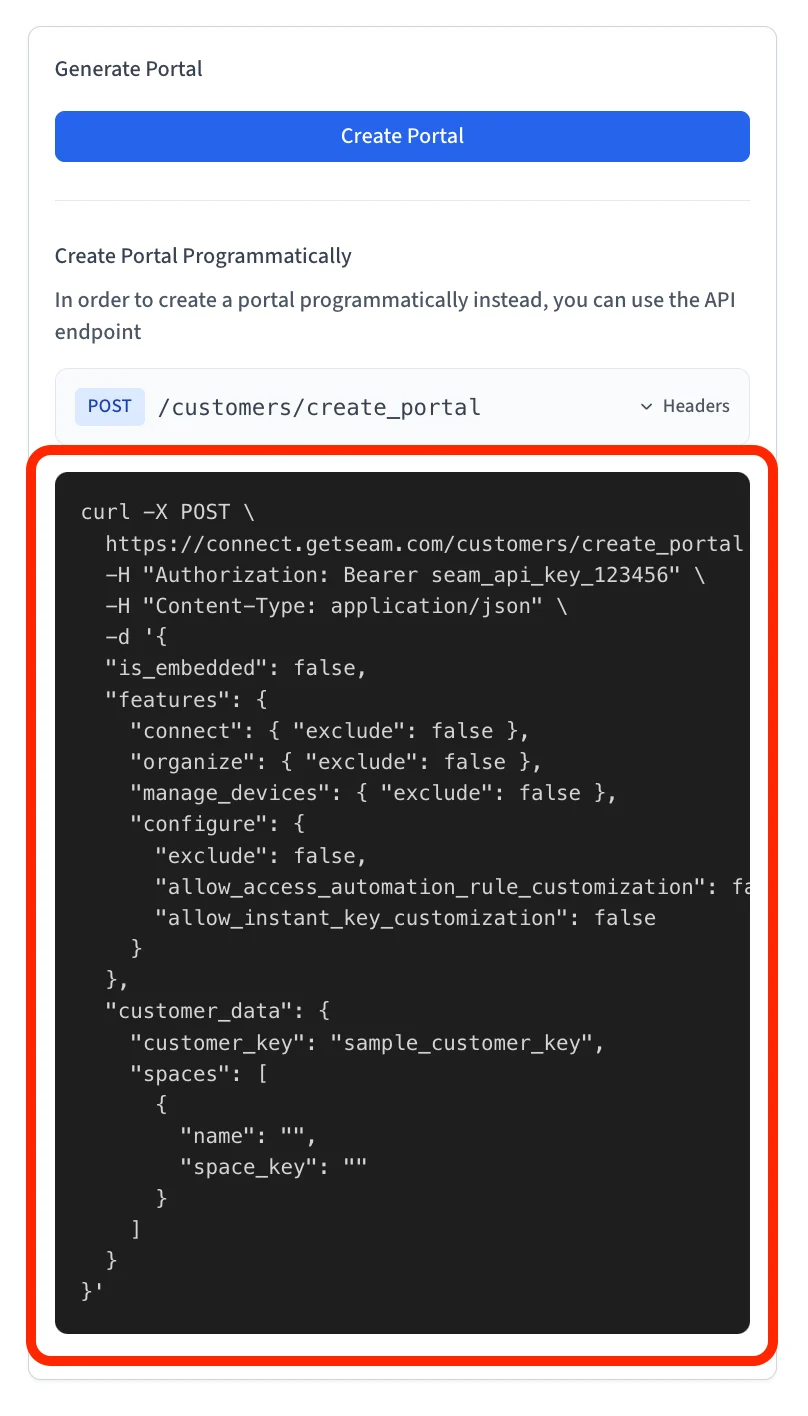
-
Copy the prefilled request (cURL). Replace placeholders like the Seam API key.
- Send the request from your app or API client.
Notes
- Customize features: All features are enabled by default; set
"exclude": trueto turn any off. - Embedded or standalone: Set
"is_embedded": trueto embed in an iframe; otherwise it’s standalone. - Scope by customer:
customer_keyties the portal to a single customer in your system. - Use your own IDs: Use
space_keyvalues that match your internal identifiers. - Session lifetime: All portal links expire after 7 days. Generate a new portal programmatically each time a customer needs access.
Embedding the Customer Portal as an iFrame
The Seam Customer Portal is a hosted, pre-authenticated interface for managing devices, access codes, reservations, and more. Instead of sharing a magic link with your end-users, you can embed the portal directly inside your own application using an iFrame. This gives your users a seamless experience without leaving your product.How it works
When you create a customer portal via the API, Seam returns acustomer_portal URL. This URL can be loaded in a standard HTML <iframe>. The portal is fully authenticated through a token embedded in the URL — no additional login is required from the end-user.
Portal links expire after 7 days. Your backend should generate a fresh link when rendering the page, or when the current link is close to expiring.
Step 1: Create a portal with is_embedded: true
Call the /customers/create_portal endpoint from your backend with the is_embedded flag set to true. This tells the portal to render in a layout optimized for iFrame embedding (no unnecessary navigation that would conflict with your app’s own UI).
customer_portal object:
Step 2: Embed the URL in an iFrame
Use thecustomer_portal.url as the src attribute of an iFrame in your frontend. The portal handles authentication automatically via the token in the URL.
customer_portal.url and passes it to your frontend, which sets it as the iFrame src. Don’t hardcode the URL — it contains a session token that expires.
Step 3: Refresh the link before it expires
Portal links are valid for 7 days. If your user keeps a page open for a long time, the embedded portal will eventually expire. Handle this by:- Generating a fresh link on each page load. This is the simplest approach. Each time your user navigates to the page containing the portal, your backend calls
/customers/create_portaland returns a new URL. - Tracking expiration client-side. Store the
expires_attimestamp and proactively refresh the iFramesrcbefore it expires.
/customers/open_portal endpoint, which reuses an existing portal session if it hasn’t expired yet, and creates a new one if it has.
Configuring which features are visible
Thefeatures object in the request body controls which sections of the portal your customer sees. Each feature can be included or excluded:
For example, if your product only needs reservation management, you can exclude everything else:
Embedding a single reservation view (deep links)
If you want to embed a portal that shows a single reservation — for example, inside a reservation detail page in your PMS — use the/customers/reservations/create_deep_link endpoint instead.
deep_link.url that you embed the same way. The portal navigates directly to the reservation page with the navigation UI hidden, so it feels like a native part of your application. Deep links automatically set is_embedded: true and navigation_mode: "restricted".
Localization
Set thelocale parameter when creating the portal to display it in a different language:
en-US(default)pt-PT— Portuguesefr-FR— Frenchit-IT— Italianes-ES— Spanish
Branding and customization
If you have a customization profile set up, pass thecustomization_profile_id when creating the portal to apply it.
- Visual branding — colors, logos, and fonts.
- Labels and terminology — the wording the portal uses, so it matches what your own product calls things.
Customizing labels and terminology
Your users may not think of a rental unit as a “space” or a booking as a “reservation.” A customization profile lets you override the portal’s wording so the embedded portal reads like part of your product rather than like Seam. For example, you might rename Space to Studio, or Reservation to Booking. Overrides are set per language, and any string you leave alone keeps Seam’s default wording — so you can rename a handful of terms without translating the whole portal. Strings are organized into namespaces, addressed asNamespace.key:
Overrides fall back gracefully. Any key you do not override — and any override
you leave blank — uses Seam’s built-in wording for that language, so a partial
set of overrides is perfectly valid and a blank field never blanks out portal
copy.
locale parameter to control which language a given portal session renders in.
Frequently asked questions
Do I need to set any special headers or CSP rules on my side? No. The portal is designed to be embedded and does not setframe-ancestors restrictions. As long as your own site doesn’t block iFrames in its Content Security Policy, it will work out of the box.
Can my user interact with the portal inside the iFrame? Yes. The portal is fully interactive — users can connect accounts, view device status, manage reservations, copy access codes, and everything else the portal supports. Adding allow="clipboard-write" to your iFrame tag enables the copy-to-clipboard functionality for access codes.
What happens when the portal link expires? The portal will show an error state. Your application should detect this (either by tracking the expires_at timestamp or by listening for a page error in the iFrame) and generate a fresh link.
Can I scope the portal to specific properties or devices? Yes. Pass customer_resources_filters when creating the portal to filter which resources are visible based on their custom_metadata. For example, you could show only properties in a specific region or managed by a specific team.