

- Redirect to the Connect Webview URL. Recommended.
- Embed the Connect Webview in an inline frame (iframe).
Use a full-page redirect unless you have a specific reason not to. Some
device providers refuse to load their own login page inside an iframe, so an
embedded Connect Webview can break for those brands—and because that decision
belongs to the provider, Seam cannot work around it or warn you before it
changes. A full-page redirect works for every provider Seam supports.
Step 1: Open a Connect Webview
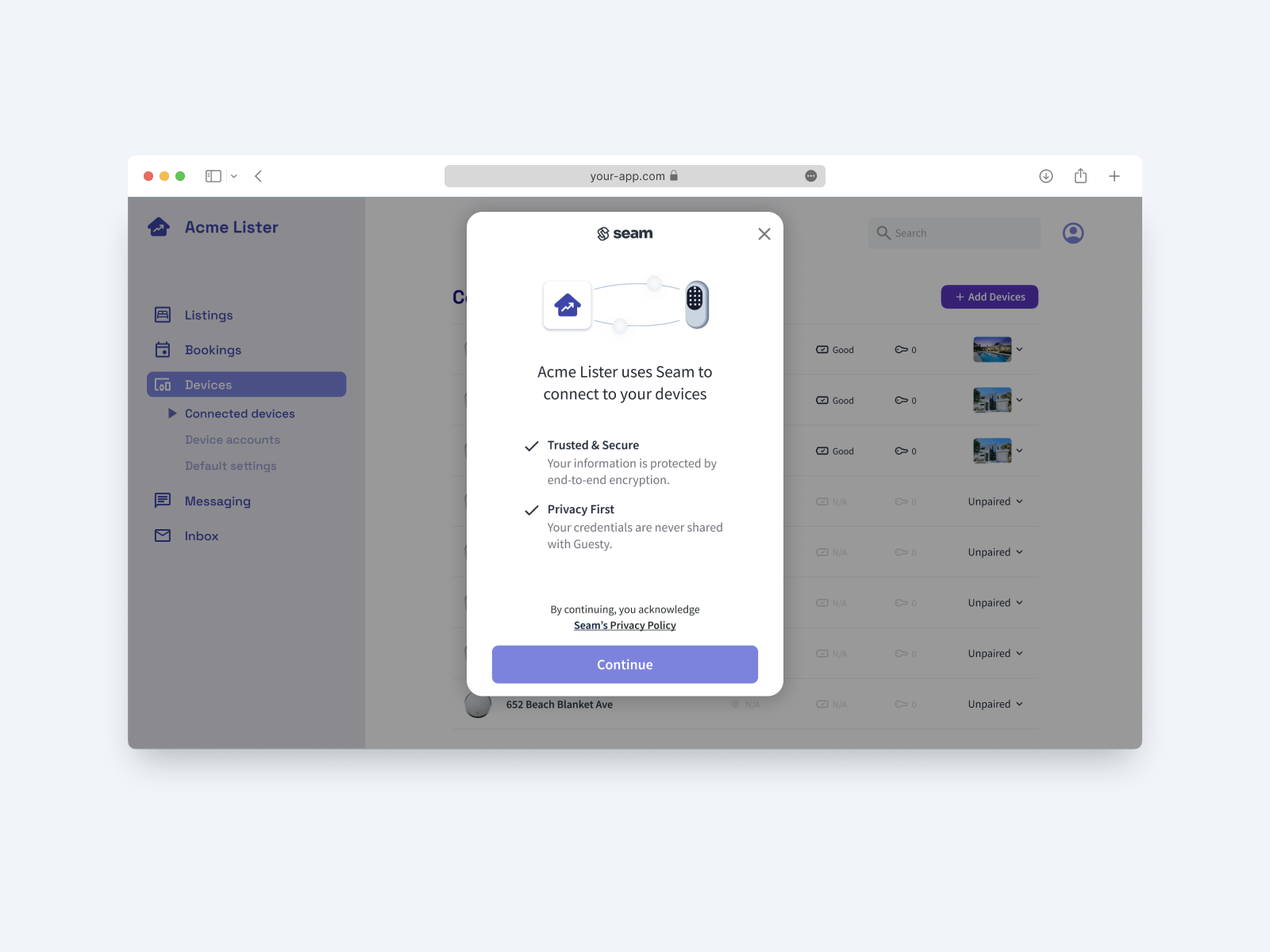
To enable users to connect their devices or access control system with your app, present a button to create and display a new Connect Webview. If your app has a settings section, we recommend creating a device or ACS settings page and displaying an Add or Link button, such as Add Devices. When your user clicks this button, your app can either redirect to the Connect Webview URL or embed the Connect Webview in an iframe and present it in a modal..png?fit=max&auto=format&n=fXUGiZ2jNb2vLfTW&q=85&s=282f9fe6278731b7826308747ee90a78)
Step 2: Display the Connect Webview
You can redirect to the Connect Webview URL or use an iframe to display the Connect Webview. Seam recommends the redirect. The following sections describe both options:Redirect to the Connect Webview URL
To incorporate a Connect Webview in your app using redirection:-
Create the Connect Webview.
- Make sure to set a
custom_redirect_urlso that the Connect Webview redirects back to the desired page within your app after the Connect Webview flow completes. This is required for a redirect flow. Without it, the Connect Webview finishes on a success screen that asks the user to close the window—and a page your app navigated to cannot close itself or return the user to your app. Seam can only close the window automatically when Seam itself opened the Connect Webview in a popup. - If you want to redirect to a different page when there is an error, you can set the
custom_redirect_failure_urlto the URL for the desired page. - We recommend setting
wait_for_device_creationtotrueso that the Connect Webview does not complete until Seam completes the first sync of the connected account and devices or ACS.
- Make sure to set a
-
Redirect your app to the URL for the created Connect Webview.
Pass the Connect Webviewurlto the client portion of your app and redirect your app to this URL.
The resulting page displays the authorization flow through which your app user can link their device or ACS account to Seam.\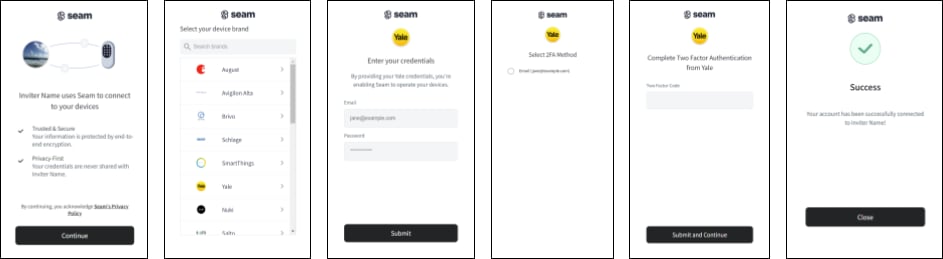
custom_redirect_url). Note that Seam appends the following search parameters to the URL after the redirect:connect_webview_id- If there is an error,
error_codeanderror_message
- Your user completes the Connect Webview authorization flow.
- Learn when the device or ACS account connection has completed successfully.
- Retrieve the devices or ACS that your user has just connected to Seam.
- Use the Seam API to control your users’ connected devices or ACS.
Embed the Connect Webview in an iframe
To incorporate a Connect Webview in your app using an HTML iframe:-
Create the Connect Webview.
We recommend settingwait_for_device_creationtotrueso that the Connect Webview does not complete until Seam completes the first sync of the connected account and devices or ACS. -
Display the URL for the created Connect Webview in an iframe.
Pass the Connect Webviewurlto the client portion of your app and use an HTML iframe to display the Connect Webview URL. For example: - Your user completes the Connect Webview authorization flow.
-
Learn when the device or ACS account connection has completed successfully.
When the connection completes successfully, you can close the iframe. - Retrieve the devices or ACS that your user has just connected to Seam.
- Use the Seam API to control your users’ connected devices or ACS.
Opening Connect Webviews in iOS or Android Apps
If you want to include a Connect Webview flow inside an iOS or Android app, it is important to note that iOS and Android require verification for each link to which a user navigates within an app. Consequently, you must register a navigation delegate to handle any links within the Connect Webview. For example, there is a link from the Connect Webview to the Seam Privacy & Legal webpage. This link includestarget=_blank in the anchor tag to open the privacy policy in a new tab or window. You must configure your iOS or Android app to handle opening links in a new browser tab or window.
The following example shows how to handle all links to URLs that are not in the getseam.com or seam.co domain within a Connect Webview embedded in an iOS or Android app: