

System Requirements
- Supported versions:
- Windows 10/11 AMD64/ARM64
- Minimum hardware:
- 1 GB RAM
- ~150 MB disk space
- x64 architecture
- Network: LAN connection required
Run Seam Bridge
Launch the app and allow required permissions
- Open the downloaded executable file.
- If you are using a Windows computer running Microsoft Defender, you may need to allow Windows to run the Seam Bridge app.
- In the Windows protected your PC dialog, click More info.
- Click Run anyway.
- If you are using a Windows computer, you may need to allow public networks to access the Seam Bridge app.
- In the Do you want to allow public and private networks to access this app? dialog, click Show more.
- Make sure that the Public networks and Private networks checkboxes are selected.
- Click Allow.
- The Seam Bridge app will launch.
Complete Seam Bridge setup
- Accept the Terms of Service.
-
Enter a name for the site that you are connecting using Seam Bridge—for example,
My Site—and then click Start pairing.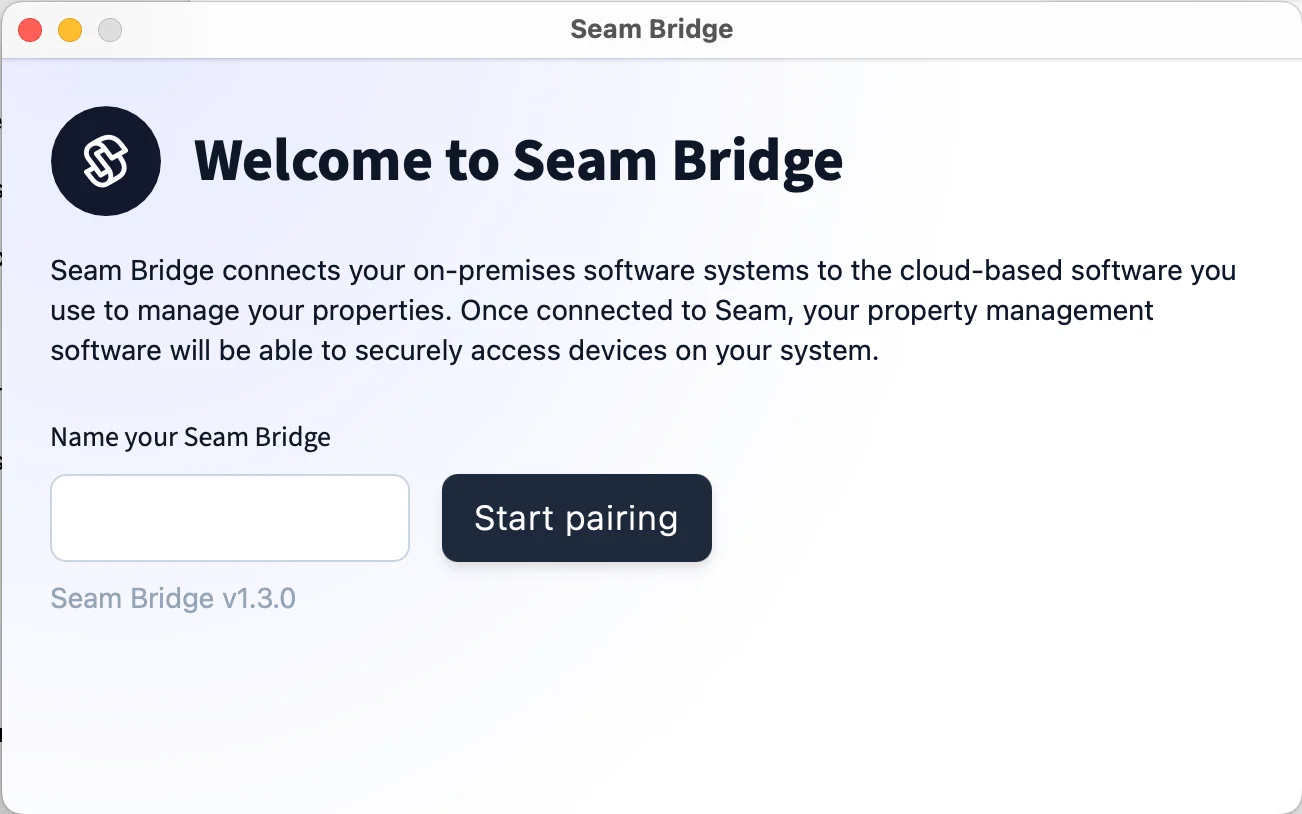
-
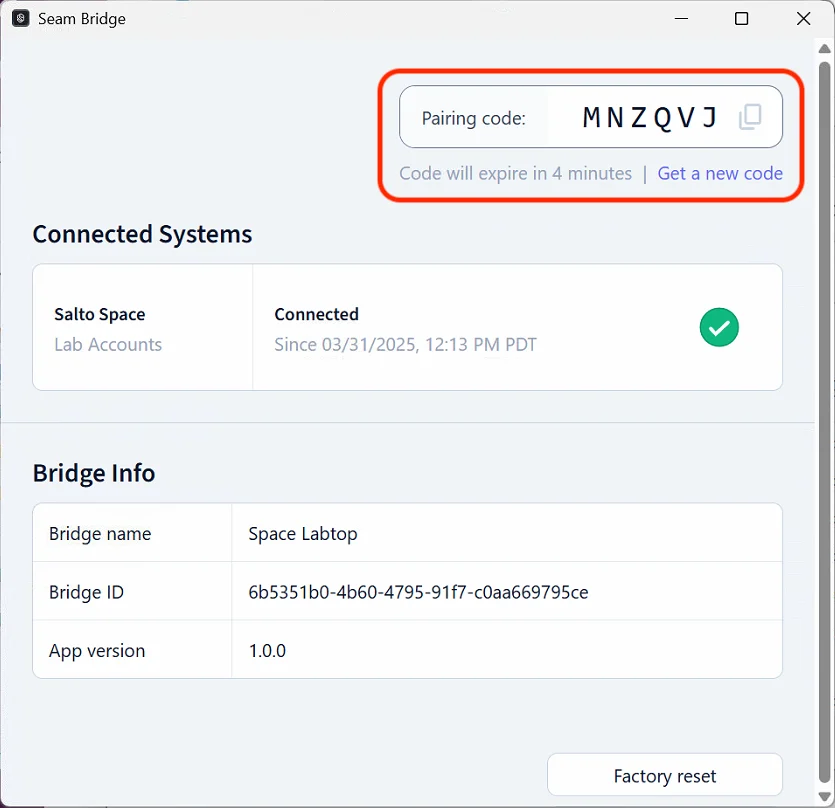
Seam Bridge displays a Pairing code. Use this code when connecting Seam Bridge to your workspace. Return to this window whenever a new pairing code is requested.
Set up Seam Bridge to Reboot on Restart
Use Task Scheduler to auto-start your app and restart it if it fails.Open Task Scheduler
- Press Win key and type Task Scheduler.
- Open Task Scheduler.
Create a new task
-
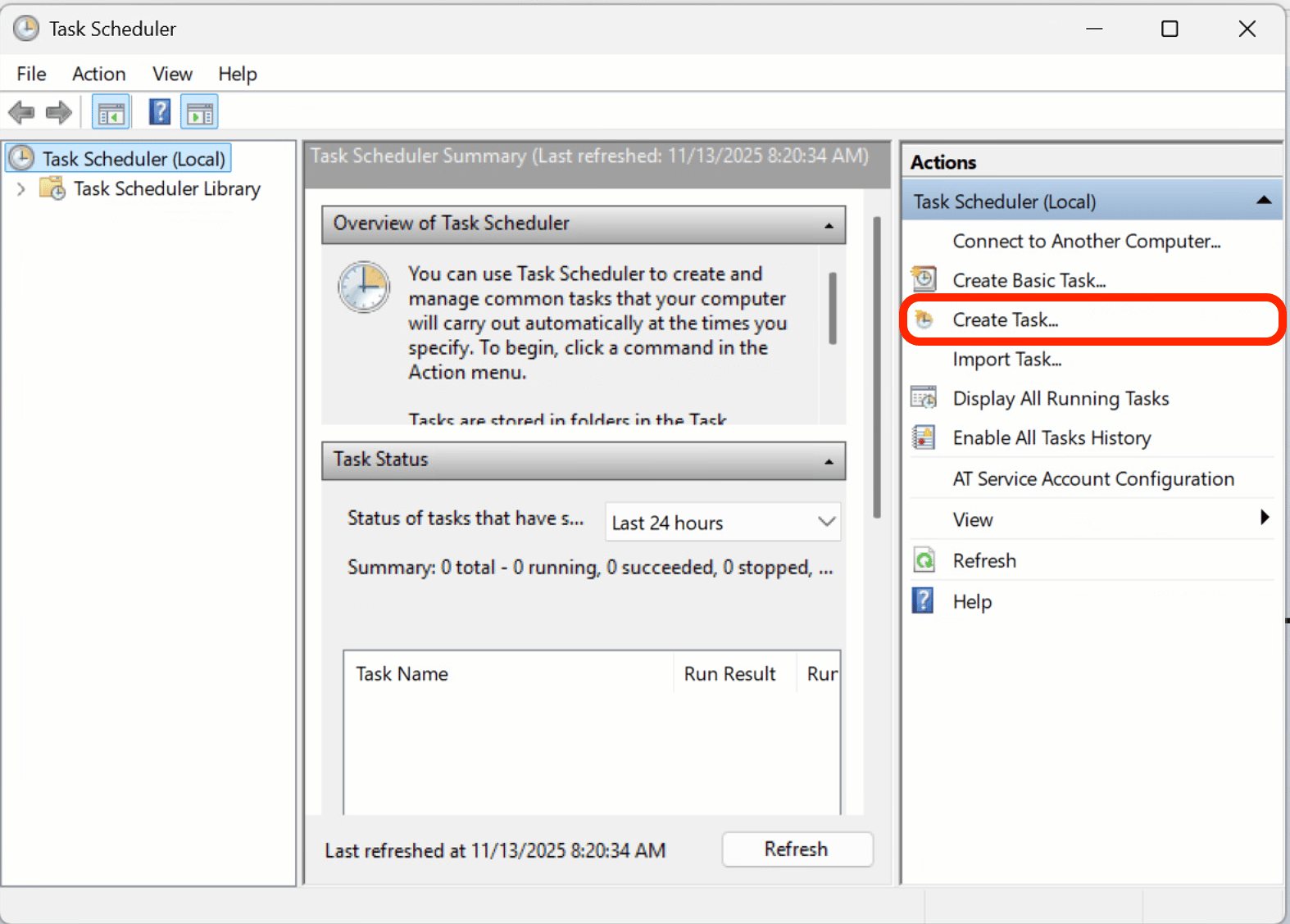
In the right-hand Actions pane, select Create Task… (not Create Basic Task).
-
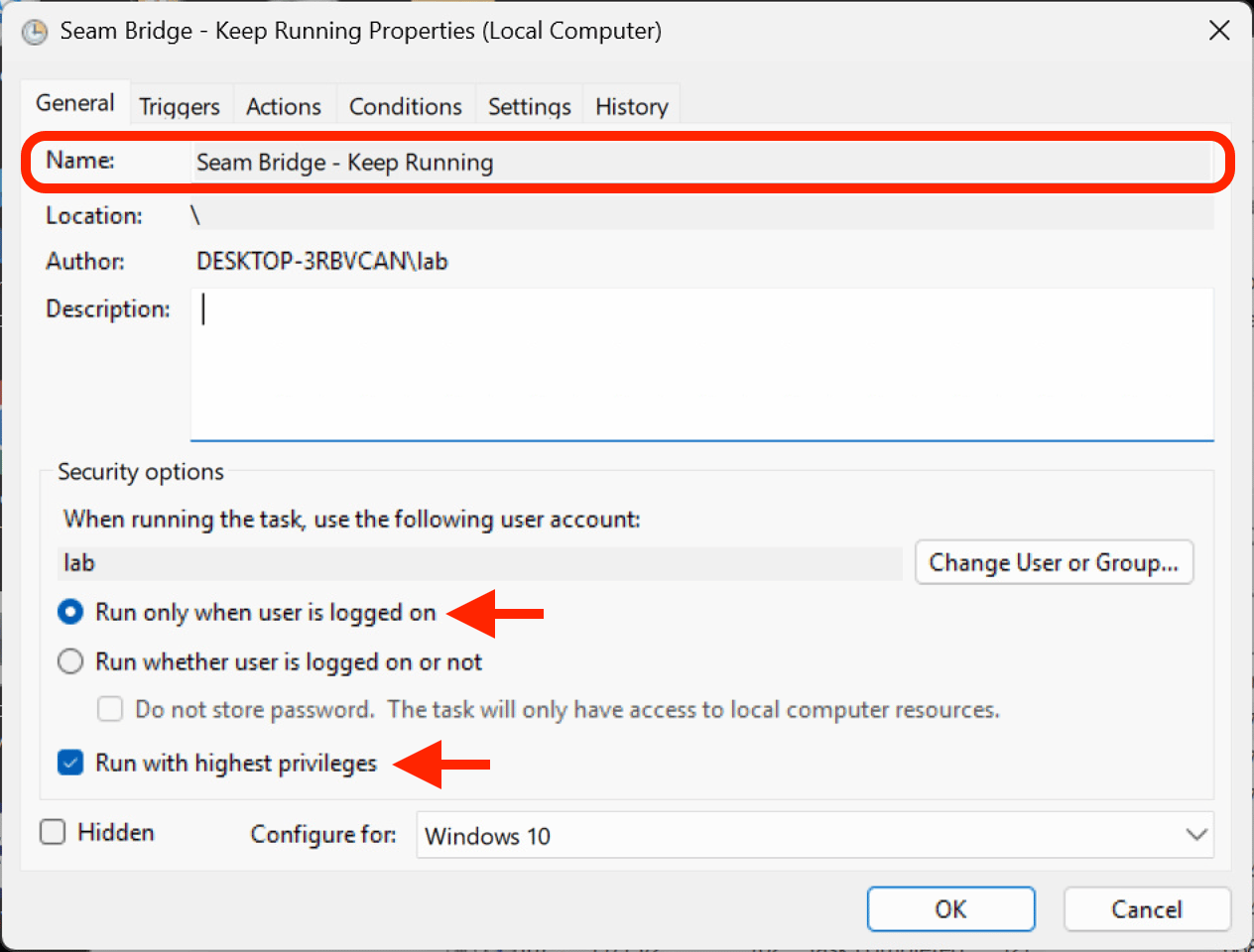
In the General tab:
- Name: e.g.
Seam Bridge - Keep Running. - (Recommended) Check Run when user is logged on.
- (If needed) Check Run with highest privileges.
- Pick the right OS under Configure for (e.g. Windows 10/11).
- Name: e.g.
-
Set up trigger to launch at start up
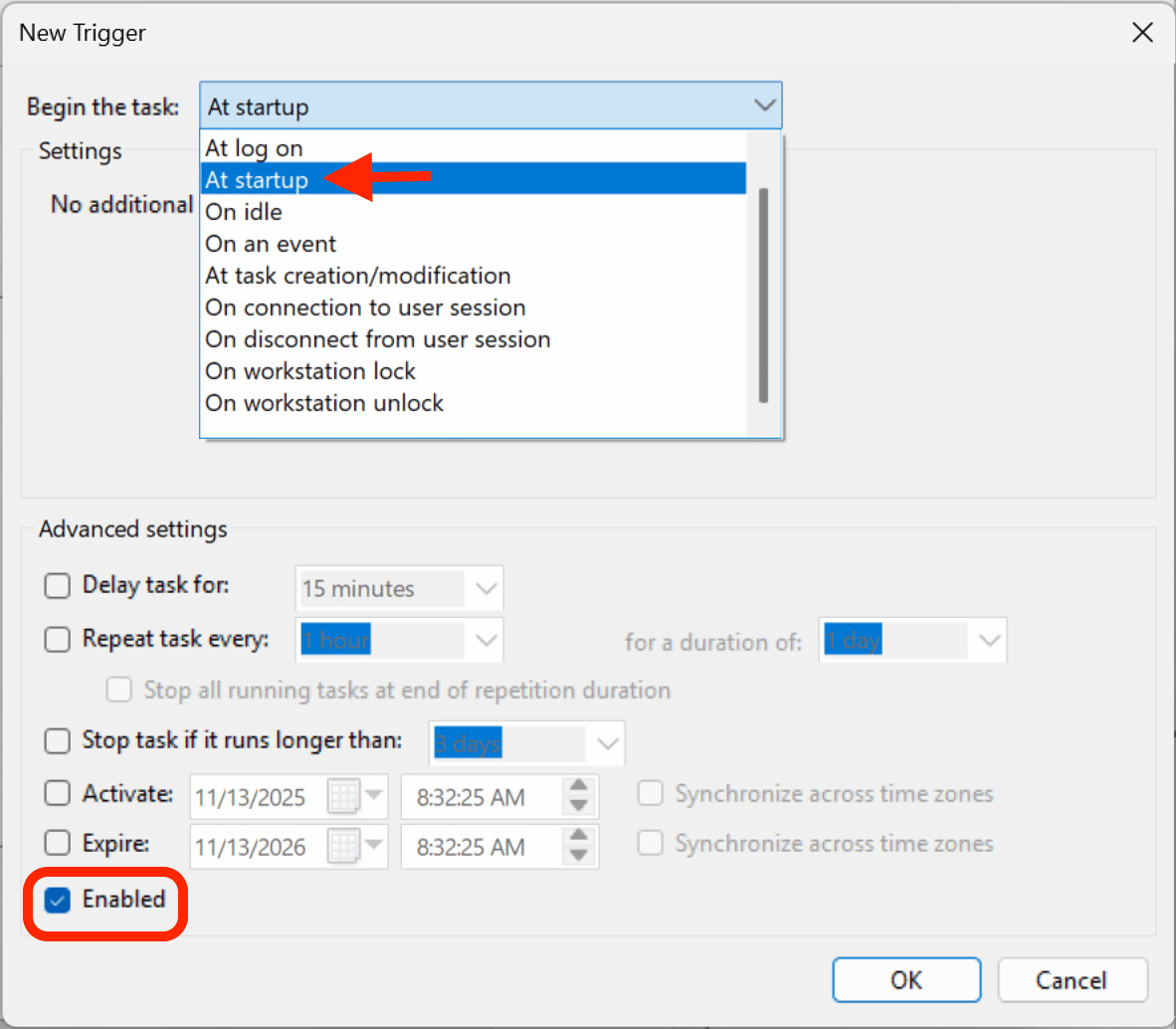
- Go to the Triggers tab and click New….
- Set Begin the task to At startup.
- Make sure Enabled is checked, then click OK.
-
Add another trigger to relaunch Seam Bridge if it closes
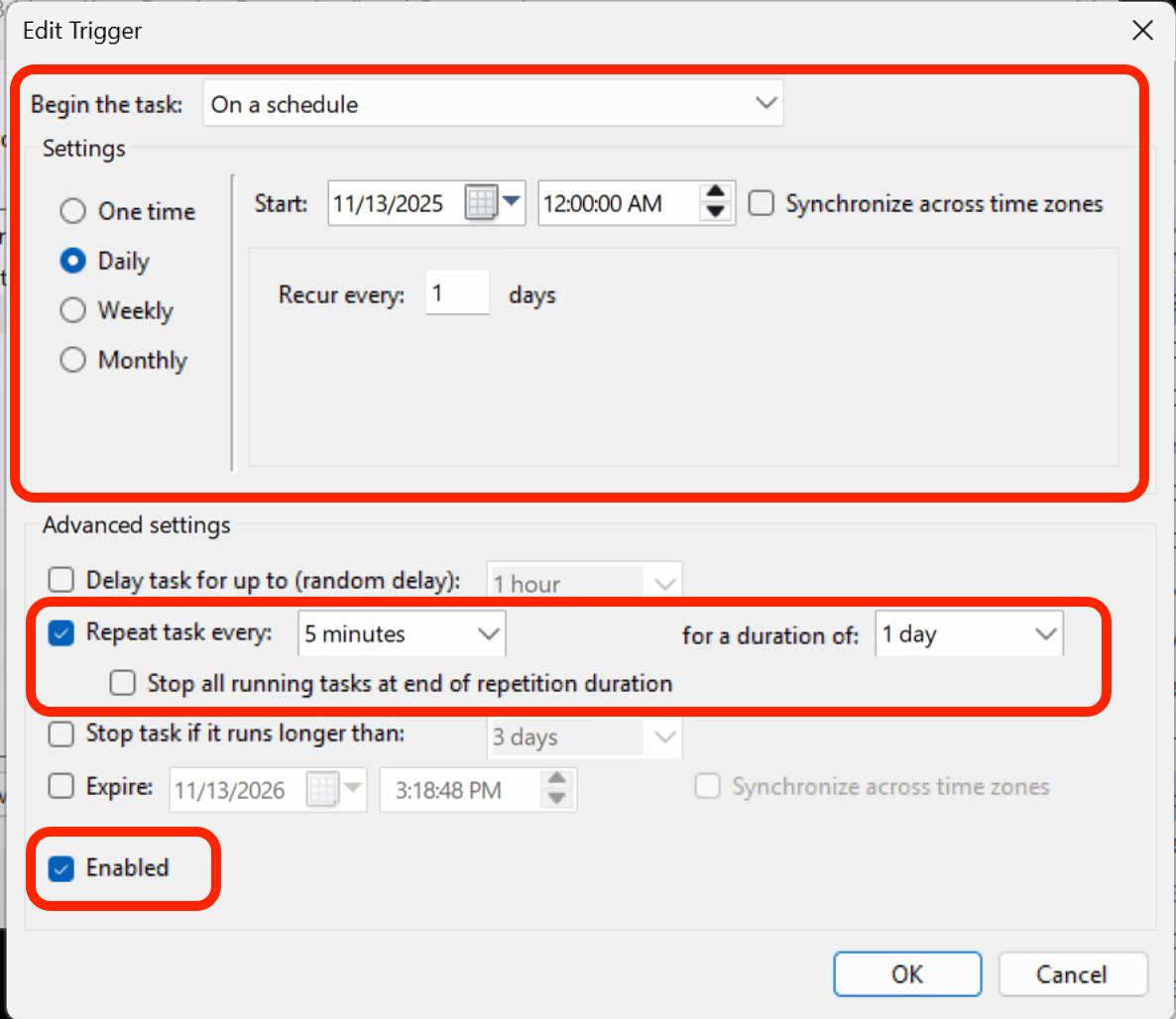
- In the Triggers tab, select New…
- Set Begin the task to On a schedule
- Under Settings, select:
- Daily
- Recur every: 1 day
- Under Advanced settings, enable:
- Repeat task every: 5 minutes
- For a duration of: 1 day
- Ensure Enabled is checked
- Select OK to save the trigger.
-
Configure launching the Seam Bridge app
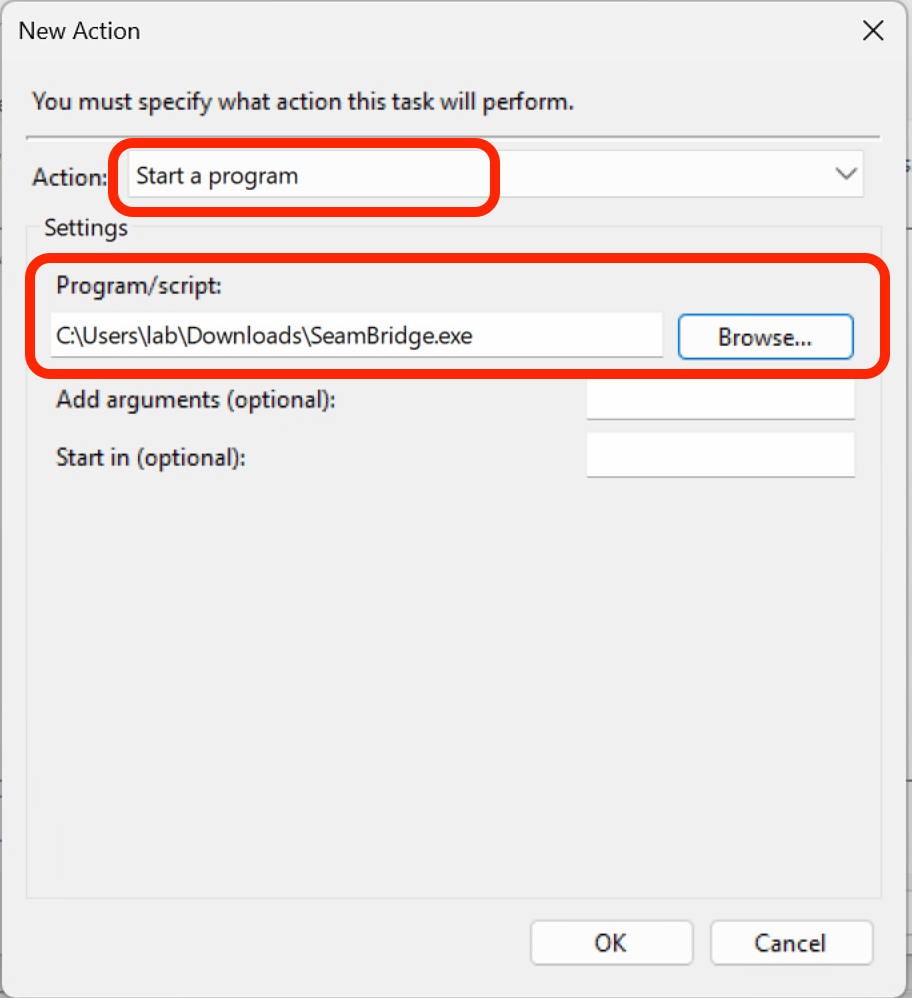
- Go to the Actions tab and click New….
- Set Action to Start a program.
- In Program/script, select your app’s .exe or script:
- Example:
C:\Users\user\Downloads\SeamBridge.exe
- Example:
- Click OK.
-
Configure settings for relaunching
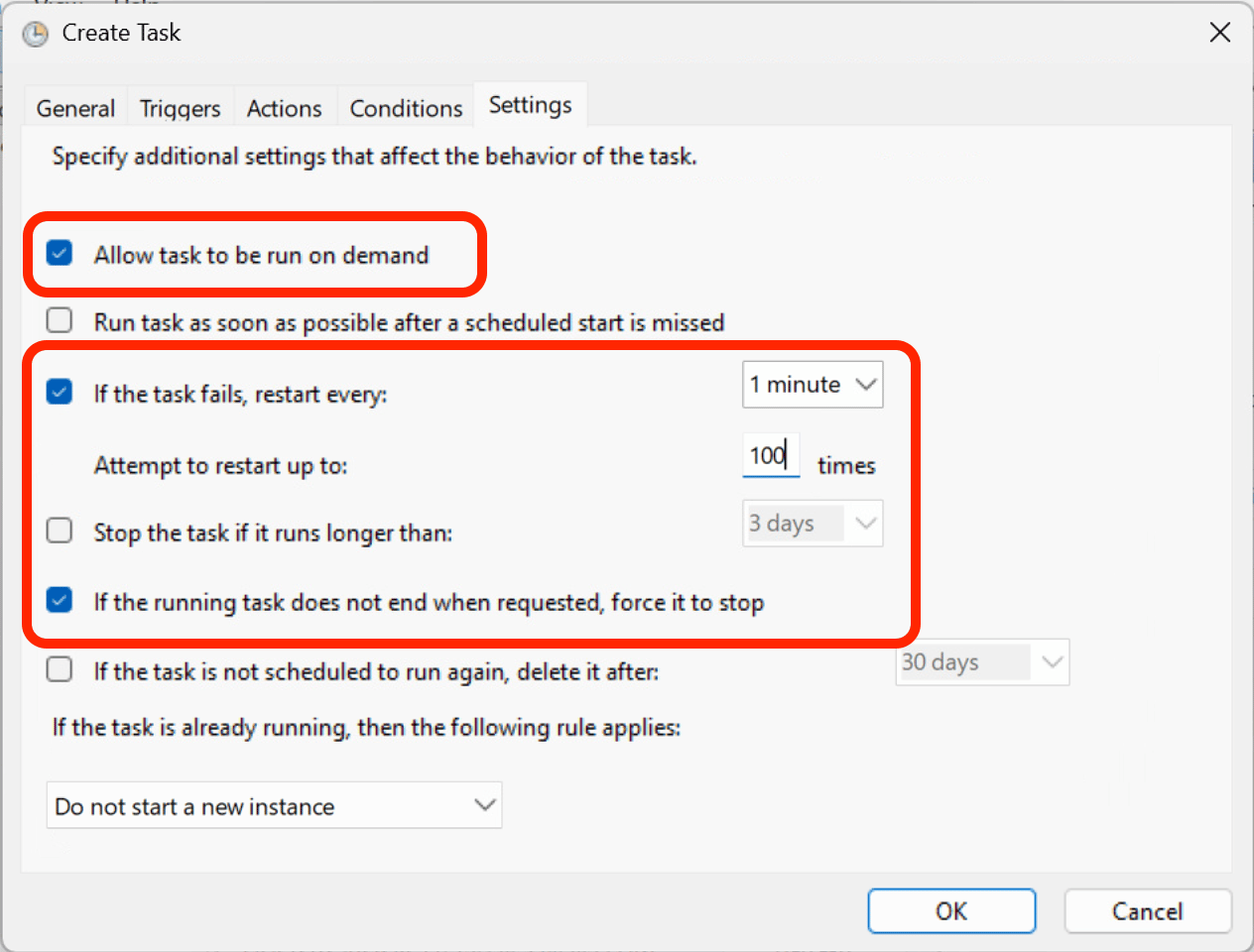
- Go to the Settings tab.
- Enable:
- Allow task to be run on demand.
- If the task fails, restart every:
1 minute, for a duration of:Indefinitelyor a reasonable number of attempts (> 100).
- Uncheck Stop the task if it runs longer than:.
- Check If the running task does not end when requested, force it to stop.
-
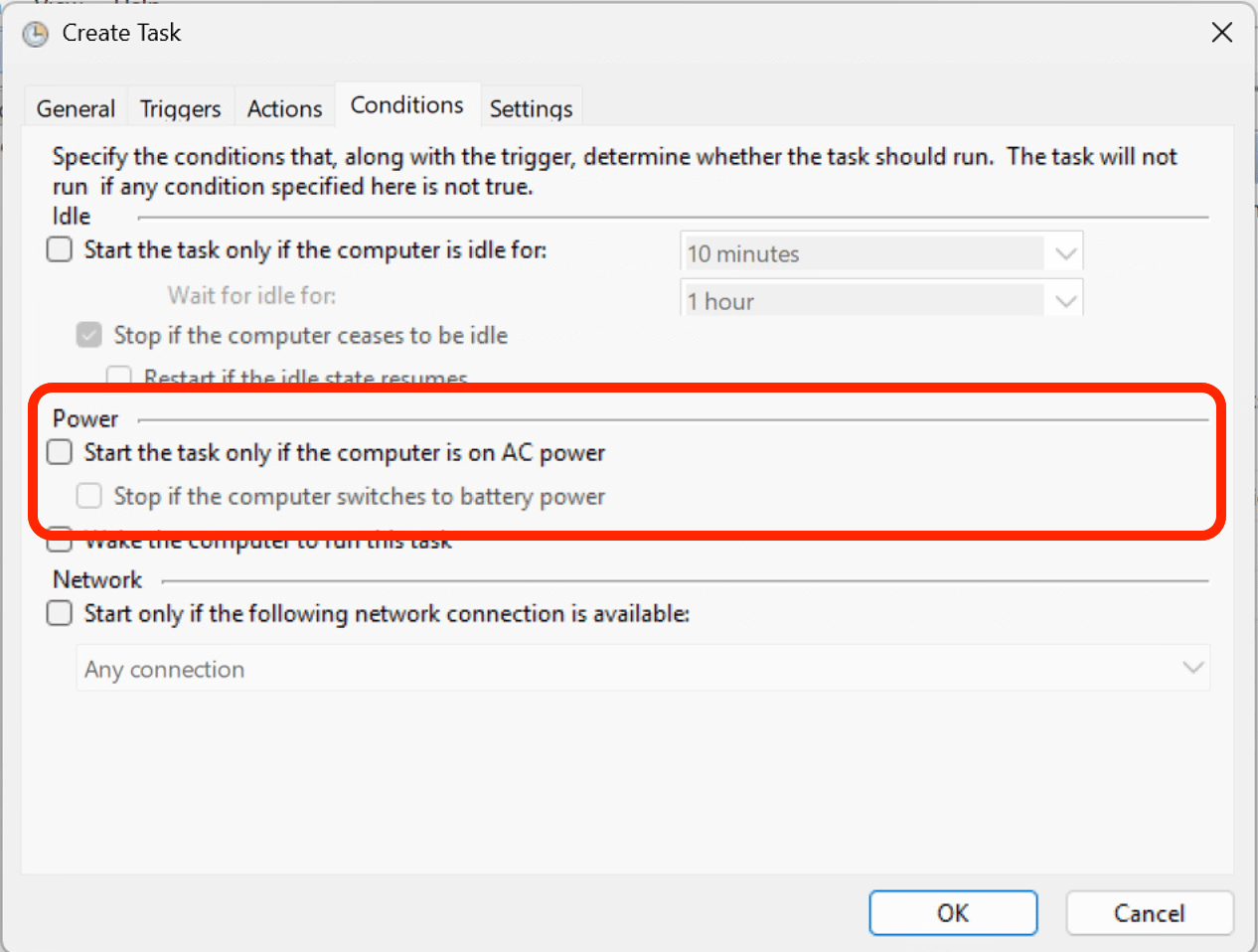
Prevent power settings from stopping the task
- Go to the Conditions tab.
- If this is a plugged-in machine (kiosk/server style):
- Uncheck Start the task only if the computer is on AC power.
- Uncheck Stop if the computer switches to battery power.
Save and test
- Click OK to save the task.
- If prompted, enter the user’s password so Windows can run it in the background.
- In Task Scheduler, right-click your new task and select Run.
- Confirm the app starts as expected.
- Restart the computer and verify the app launches automatically.