# Get started with Angular
## Overview
This guide will show you how to use Seam Components inside an Angular application. Seam Components are implemented in React, but may be used anywhere as native web components.
## 1 - Get a Publishable Key from the Seam Console
To access the Seam API, you'll need a publishable key. This key identifies your application when making requests to Seam and is safe to embed in your frontend code.
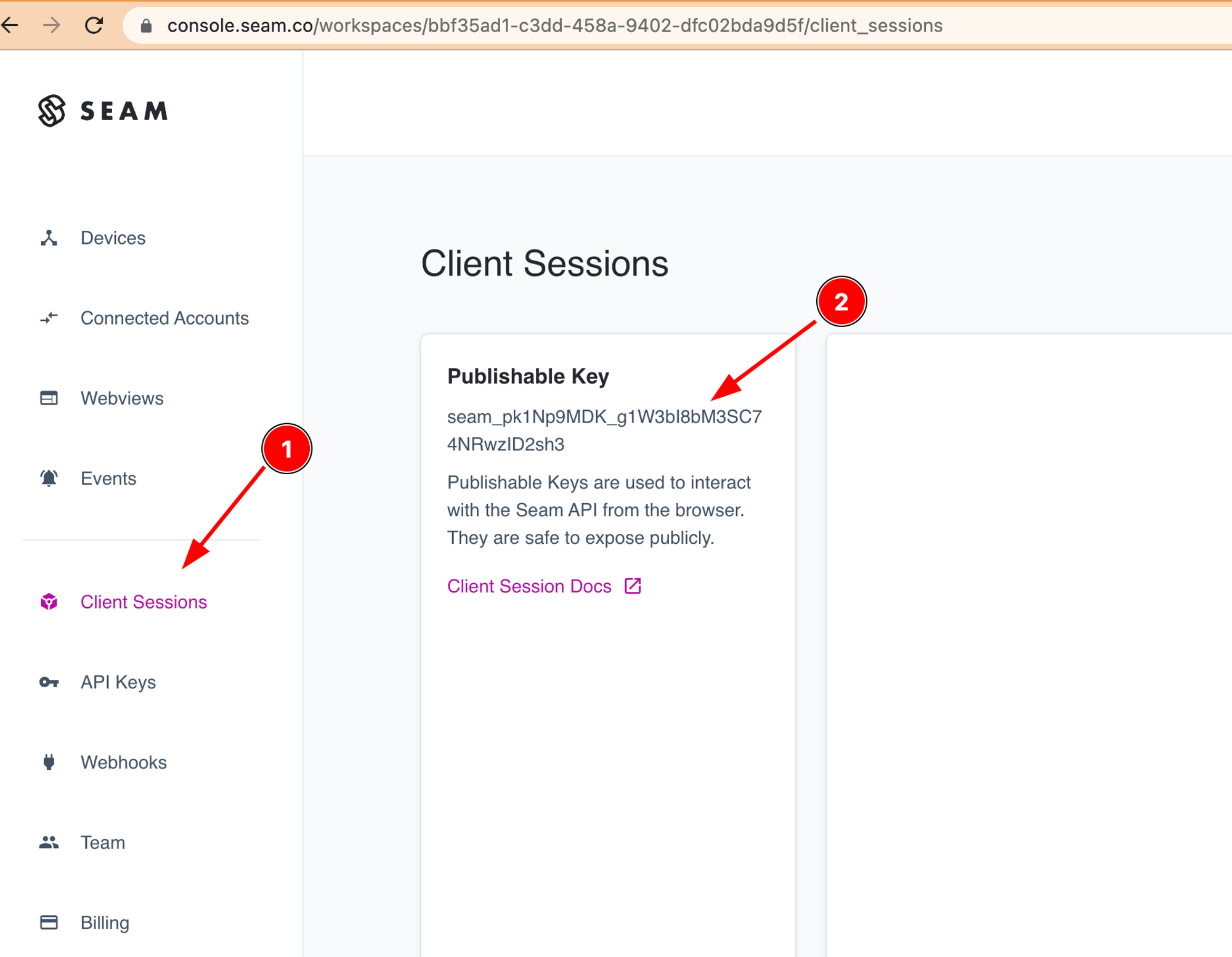
Go to [console.seam.co](https://console.seam.co) and select "Client Sessions" from the sidebar. You should then see a "Publishable Key" that you can copy.
## 2 - Install `@seamapi/react` in your Angular application
Install the npm package
```bash
npm install --save @seamapi/react
```
Then import the custom elements bundle in you `main.ts` application entrypoint:
```typescript
import "@seamapi/react/elements.js";
import { platformBrowserDynamic } from "@angular/platform-browser-dynamic";
import { AppModule } from "./app/app.module";
platformBrowserDynamic()
.bootstrapModule(AppModule)
.catch((err) => console.error(err));
```
## 3 — Wrap the web component in an Angular module
Create a new module named `supported-device-table.module.ts` with
```typescript
import {
Component,
Input,
NgModule,
CUSTOM_ELEMENTS_SCHEMA,
} from "@angular/core";
@Component({
selector: "supported-device-table",
template:
'',
})
export class SupportedDeviceTable {
@Input() publishableKey?: string;
}
@NgModule({
declarations: [SupportedDeviceTable],
exports: [SupportedDeviceTable],
schemas: [CUSTOM_ELEMENTS_SCHEMA],
})
export class SupportedDeviceTableModule {}
```
## 4 - Use the component
Include the new module in `app.module.ts`:
```typescript
import { NgModule } from "@angular/core";
import { BrowserModule } from "@angular/platform-browser";
import { AppComponent } from "./app.component";
import { SupportedDeviceTableModule } from "./supported-device-table.module";
@NgModule({
declarations: [AppComponent],
imports: [BrowserModule, SupportedDeviceTableModule],
providers: [],
bootstrap: [AppComponent],
})
export class AppModule {}
```
Then use it in `app.component.html`:
```html
```
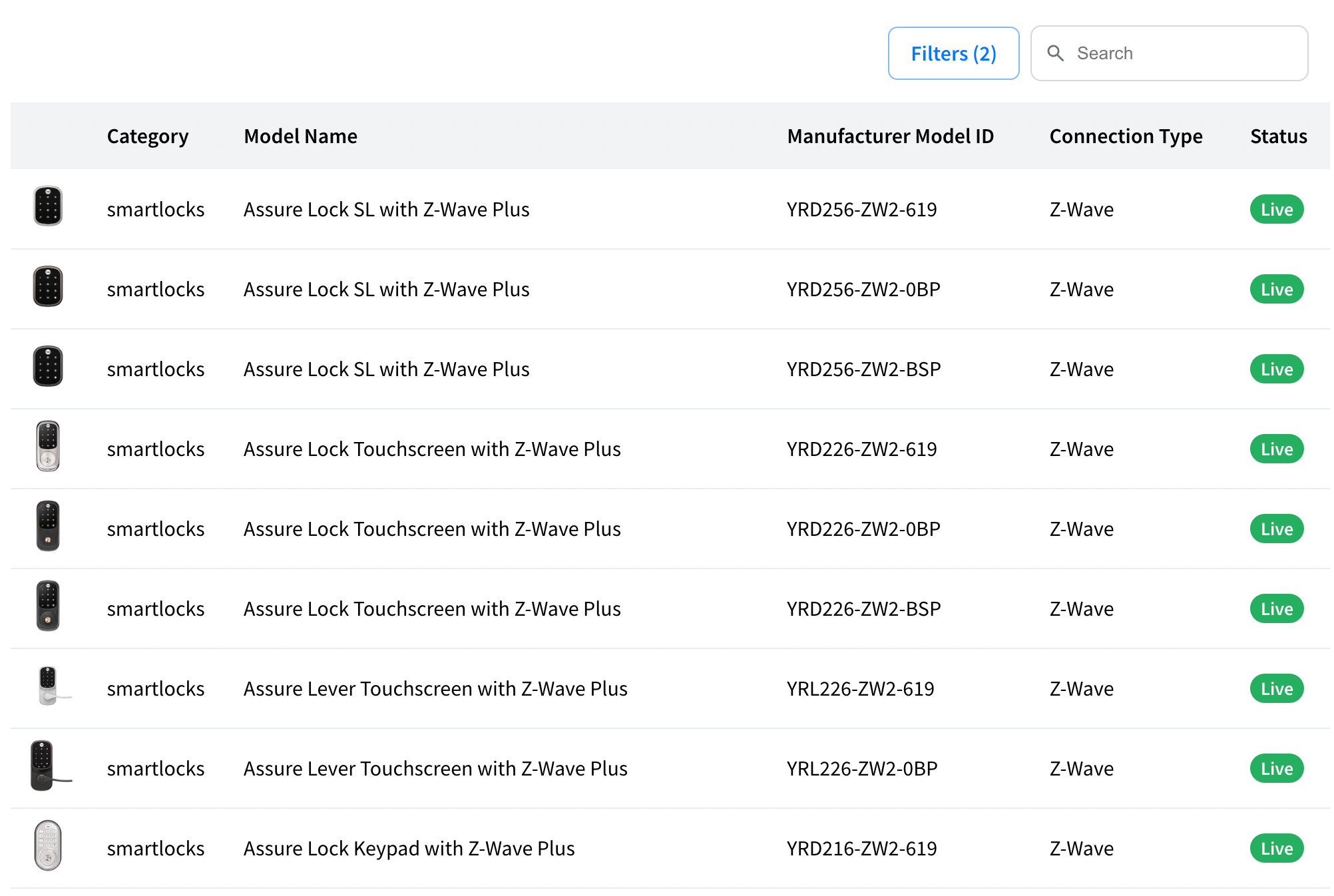
You should see a list of device models like what's shown below:
## Next Steps
* [Minimal sample app](https://github.com/seamapi/seam-components-sample-apps/tree/main/angular-web-components) running Seam Web Components in Angular.
* Start connecting devices using [Client Side Components](https://docs.seam.co/latest/~/revisions/DFdrUdS2jQOnbJTNDT5a/ui-components/overview/getting-started-with-seam-components/get-started-with-client-side-components) or with [Client Session Tokens](https://docs.seam.co/latest/~/revisions/DFdrUdS2jQOnbJTNDT5a/ui-components/overview/getting-started-with-seam-components/get-started-with-react-components-and-client-session-tokens).
* View and play with other components in the [interactive storybook component library](https://react.seam.co/)
* Check out some [Full Example Apps](https://github.com/seamapi/react/tree/main/examples)
If you have any questions or want to report an issue, email us at .