# Step 9: Connect Your Visionline Production Account to Seam

To launch your mobile key app into production, perform the following procedures to connect your Visionline production account to Seam:

1. [Connect your ASSA ABLOY Credential Services production account to Seam.](#connect-credential-services-to-seam)
2. [Connect your Visionline production account to Seam.](#connect-visionline-to-seam)

   This process includes installing and running Seam Bridge to connect your on-premises Visionline application to Seam. For more information, see [Seam Bridge](https://docs.seam.co/latest/~/revisions/DFdrUdS2jQOnbJTNDT5a/capability-guides/seam-bridge).

{% hint style="info" %}
If you already connected your Visionline ACS to Seam during the development phase—using your Visionline development account—you must now reconnect Visionline to Seam using your production Visionline credentials.
{% endhint %}

***

## Connect Credential Services to Seam

ASSA ABLOY Credential Services stores all the mobile credentials that your application issues. For more information about ASSA ABLOY Credential Services, see the [ASSA ABLOY Credential Services integration guide](https://github.com/seamapi/docs/blob/main/docs/device-and-system-integration-guides/assa-abloy-credential-services-credential-manager.md).

You received a Credential Services production "tenant" account from ASSA ABLOY when you [obtained ASSA ABLOY certification](https://docs.seam.co/latest/~/revisions/DFdrUdS2jQOnbJTNDT5a/device-and-system-integration-guides/assa-abloy-visionline-access-control-system/visionline-acs-setup-instructions/developing-and-launching-your-visionline-mobile-key-app/launching-your-visionline-mobile-key-app/step-1-obtain-assa-abloy-certification-for-your-mobile-key-app) for your mobile key app. ASSA ABLOY provided you with the following production-phase information upon certification:

* Tenant account username
* Tenant account password
* Credential Services URL
* Application ID

{% hint style="info" %}
ASSA ABLOY assigned you a preliminary application ID during the development phase. You cannot use this preliminary application ID to connect to live sites. To connect to real sites, you must use the production application ID that you received from ASSA ABLOY when you obtained ASSA ABLOY certification. This production application ID uniquely identifies your application within both the iOS and Android app stores.

Once you've obtained certification, you must edit your workspace settings to update this application ID.
{% endhint %}

1. In the top navigation pane of [Seam Console](https://console.seam.co/), click **ACS Systems**. Then, in the upper-right corner of the **Access Systems** page, click **New Access System**.

   <figure><img src="https://2727122207-files.gitbook.io/~/files/v0/b/gitbook-x-prod.appspot.com/o/spaces%2FxnN2A67918om1UthYWsF%2Fuploads%2FmOyK1vgGuCZkev2yeq9b%2Faccess-systems-tab-production-workspace.png?alt=media&#x26;token=e7234f59-9dbe-4934-a0da-f8ab42d24a52" alt="Click ACS Systems to go to the Access Systems page."><figcaption><p>Click ACS Systems to go to the Access Systems page.</p></figcaption></figure>
2. In the Connect Webview, perform the following steps:
   1. Click **Continue**.
   2. If the Connect Webview displays multiple brand options, select **Assa Abloy Credential Service**.
   3. In the **Username** field, type your production tenant account username.
   4. In the **Password** field, type your production tenant account password.
   5. In the **Credential Services URL** field, type the production Credential Services URL.

      <figure><img src="https://2727122207-files.gitbook.io/~/files/v0/b/gitbook-x-prod.appspot.com/o/spaces%2FxnN2A67918om1UthYWsF%2Fuploads%2FppO8Ctnrs1kfmw4OJaRJ%2Fconnect-webview-assa-abloy-credential-service-credentials.png?alt=media&#x26;token=f7af8f63-20f6-47db-9b9f-9ca256c2c5b5" alt="" width="181"><figcaption></figcaption></figure>
   6. Click **Submit**.
3. Configure your ASSA ABLOY settings in Seam Console, as follows:
   1. In the top navigation pane of [Seam Console](https://console.seam.co/), click **Settings**.
   2. On the **Workspace Settings** page, next to **Assa Abloy Settings**, click **Edit**.
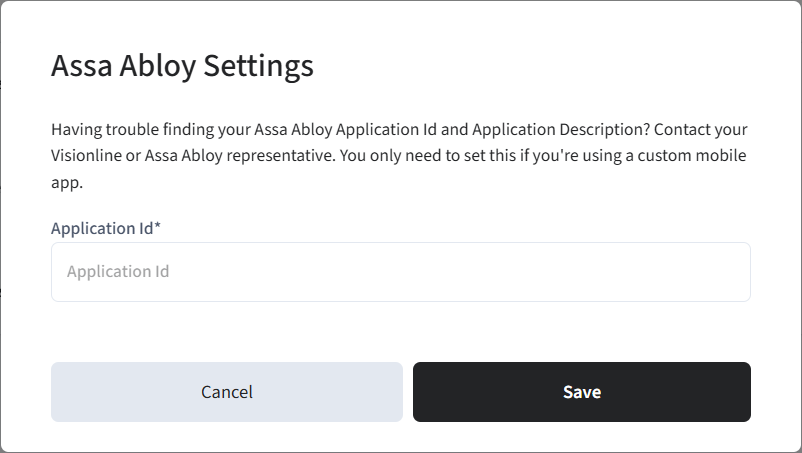
   3. In the **Assa Abloy Settings** dialog, type your production application ID.

      <figure><img src="https://2727122207-files.gitbook.io/~/files/v0/b/gitbook-x-prod.appspot.com/o/spaces%2FxnN2A67918om1UthYWsF%2Fuploads%2Fd6MKvzC2Dnoqf401w73s%2Fassa-abloy-settings.png?alt=media&#x26;token=ed1e6a1d-2a70-43d5-9507-df188db2c755" alt="Type your ASSA ABLOY application ID." width="375"><figcaption><p>Type your ASSA ABLOY application ID.</p></figcaption></figure>
   4. Click **Save**.

***

## Connect Visionline to Seam

Perform this process for each Visionline site that you want to connect to Seam.

1. Identify your production Visionline mobile access UUID and system ID.

   Note that you received these details when you [obtained ASSA ABLOY certification](https://docs.seam.co/latest/~/revisions/DFdrUdS2jQOnbJTNDT5a/device-and-system-integration-guides/assa-abloy-visionline-access-control-system/visionline-acs-setup-instructions/developing-and-launching-your-visionline-mobile-key-app/launching-your-visionline-mobile-key-app/step-1-obtain-assa-abloy-certification-for-your-mobile-key-app). Alternately, to find this information:

   1. In the Visionline application, at the bottom of the left navigation pane, click **Lists**.
   2. In the **System setup** section of the left navigation pane, double-click **Mobile Access Accounts**.
   3. Double-click the production mobile access account that you created for the Seam integration.
   4. In the **Mobile Access account details** window, note the **System ID**.
   5. In the top menu in the Visionline application, click **Tools > Options**.
   6. In the left navigation pane of the **Options** window, click **Mobile Access**.
   7. Note the **UUID**.
2. In the top navigation pane of [Seam Console](https://console.seam.co/), click **ACS Systems**.

   <figure><img src="https://2727122207-files.gitbook.io/~/files/v0/b/gitbook-x-prod.appspot.com/o/spaces%2FxnN2A67918om1UthYWsF%2Fuploads%2FmOyK1vgGuCZkev2yeq9b%2Faccess-systems-tab-production-workspace.png?alt=media&#x26;token=e7234f59-9dbe-4934-a0da-f8ab42d24a52" alt="Click ACS Systems to go to the Access Systems page."><figcaption><p>Click ACS Systems to go to the Access Systems page.</p></figcaption></figure>
3. On the **Access Systems** page, click **New Access System**.

   Seam Console displays a Connect Webview that enables you to connect your ACS to Seam.
4. In the Connect Webview, click **Continue**.
5. If the Connect Webview displays multiple brand options, click **Visionline**.
6. On the **Set up your Seam Bridge** page, click [**latest Seam Bridge client**](https://www.seam.co/seam-bridge/releases/latest).

   [Seam Bridge](https://docs.seam.co/latest/~/revisions/DFdrUdS2jQOnbJTNDT5a/capability-guides/seam-bridge) is a software-only component that enables you to connect on-premises software systems to the Seam platform. Because Visionline is an on-premises ACS, Seam Bridge is required for Visionline systems.
7. Download the Seam Bridge executable onto the on-premises computer that is running Visionline or onto a computer on the same network.

   For systems requirements, see [Seam Bridge](https://docs.seam.co/latest/~/revisions/DFdrUdS2jQOnbJTNDT5a/capability-guides/seam-bridge).
8. Run the downloaded Seam Bridge app.
9. In the **Welcome to Seam Bridge** window, type a name for the site that you are connecting using Seam Bridge and then click **Start pairing**.
10. Copy the pairing code.

    <figure><img src="https://2727122207-files.gitbook.io/~/files/v0/b/gitbook-x-prod.appspot.com/o/spaces%2FxnN2A67918om1UthYWsF%2Fuploads%2FJxanl4hnuMJbC2P7RpPO%2Fseam-bridge-pairing-code.png?alt=media&#x26;token=54d53d67-1af4-43c5-bcfe-798159c7c268" alt="Use the pairing code to pair Seam Bridge with your workspace." width="375"><figcaption><p>Use the pairing code to pair Seam Bridge with your workspace.</p></figcaption></figure>
11. In the Connect Webview, click **Continue**.
12. On the **Visionline info** page:
    1. In the **Enter your pairing token** field, paste the pairing code that you copied.
    2. In the **Name your bridge** field, type a unique name for Seam Bridge.
    3. Click **Submit**.
13. On the **Enter your credentials** page:
    1. In the **Visionline Site Name** field, type a name to identify the Visionline site within your Seam workspace.
    2. In the **Username** field, type the username for your Visionline production account.

       This account is the one that you [created or identified in Visionline for the connection with Seam](https://docs.seam.co/latest/~/revisions/DFdrUdS2jQOnbJTNDT5a/device-and-system-integration-guides/assa-abloy-visionline-access-control-system/visionline-acs-setup-instructions/developing-and-launching-your-visionline-mobile-key-app/launching-your-visionline-mobile-key-app/step-6-configure-a-visionline-user-account).
    3. In the **Password** field, type the password for your Visionline production account.
    4. Select the **Mobile Keys will be issued in this system** checkbox.
    5. In the **Mobile Access UUID** field, type your production mobile access UUID.
    6. In the **System ID** field, type your production system ID.
    7. If Seam Bridge is not installed on the same computer as Visionline, select **Seam Bridge and Visionline server are installed on different computers** and then type the local IP address of the on-premises computer running Seam Bridge.
    8. Click **Submit**.
14. Click **Close**.