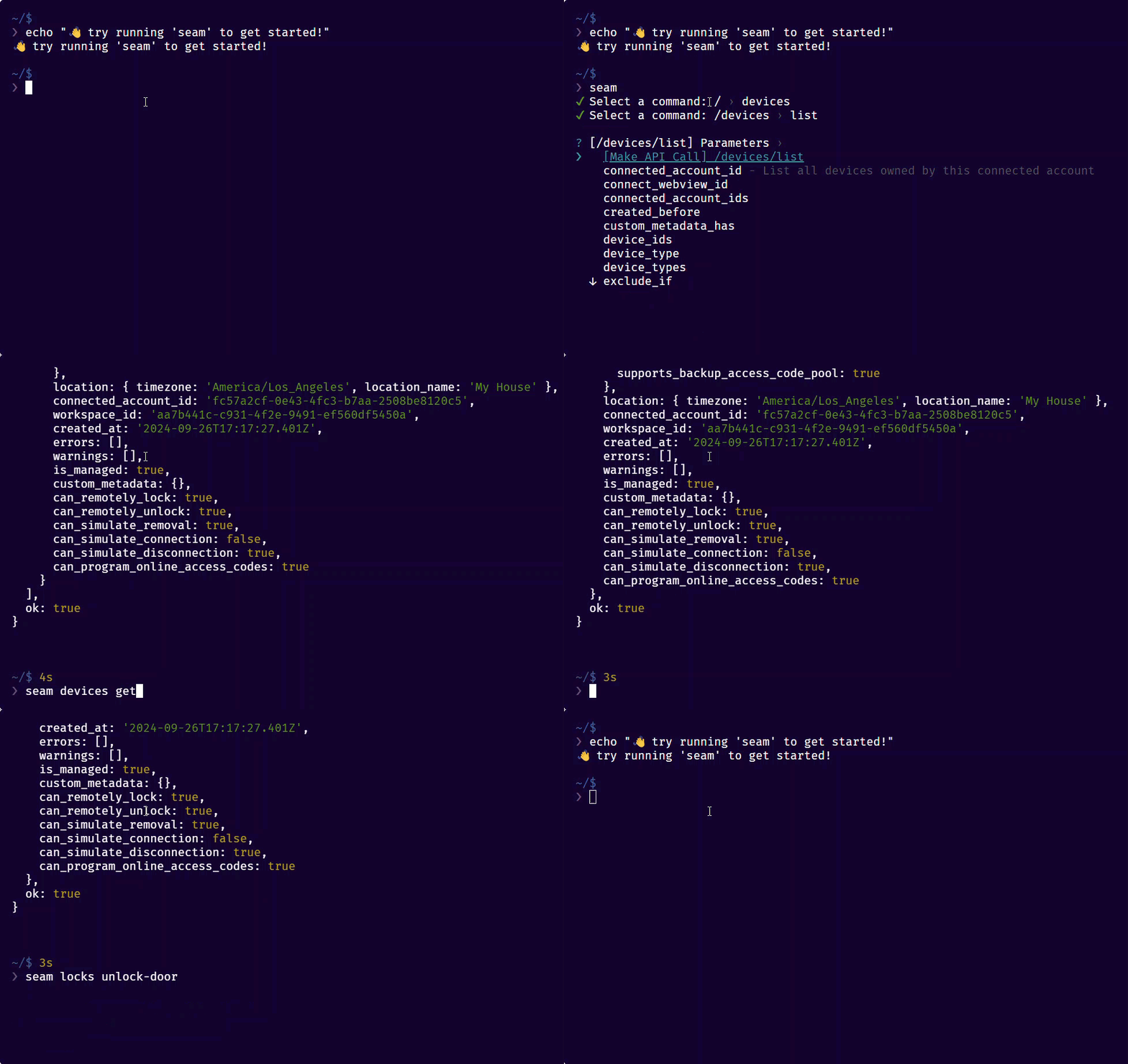
# Seam Online CLI

<figure><img src="https://2727122207-files.gitbook.io/~/files/v0/b/gitbook-x-prod.appspot.com/o/spaces%2FxnN2A67918om1UthYWsF%2Fuploads%2FjV8ZycDKt8hmwF5QqfhW%2Fseam-cli-demo.gif?alt=media&#x26;token=5fa79216-3239-4279-9754-3eeffe40b6d9" alt="Use the interactive Seam CLI to explore and test the Seam API." width="563"><figcaption><p>Use the interactive Seam CLI to explore and test the Seam API.</p></figcaption></figure>

The Seam Online Command Line Interface (CLI) is a fully interactive CLI version of the [Seam API](https://docs.seam.co/latest/~/revisions/DFdrUdS2jQOnbJTNDT5a/api). You access the Seam Online CLI from within [Seam Console](https://docs.seam.co/latest/~/revisions/DFdrUdS2jQOnbJTNDT5a/core-concepts/seam-console). Quick, intuitive, and easy to use, the Seam Online CLI enables you to perform a variety of useful tasks, including the following:

* Explore and test all the available methods in the Seam API interactively.
* View resources or test API functions easily and quickly.
* Inspect the results of your API commands.
* Access Seam API functionality that is not currently available in Seam Console.

{% hint style="info" %}
In addition to using the Seam Online CLI within Seam Console, you can also [install and use the Seam CLI locally](https://docs.seam.co/latest/~/revisions/DFdrUdS2jQOnbJTNDT5a/developer-tools/seam-cli).
{% endhint %}

<table data-card-size="large" data-view="cards" data-full-width="false"><thead><tr><th></th><th data-hidden></th><th data-hidden></th><th data-hidden data-card-cover data-type="files"></th><th data-hidden data-card-target data-type="content-ref"></th></tr></thead><tbody><tr><td><strong>Seam Online CLI Demo</strong></td><td></td><td></td><td><a href="https://2727122207-files.gitbook.io/~/files/v0/b/gitbook-x-prod.appspot.com/o/spaces%2FxnN2A67918om1UthYWsF%2Fuploads%2Fk70c9mwyDaIkULQoqVmC%2Fseam-online-cli.png?alt=media&#x26;token=217b0212-70b3-496d-b3f9-ecd4b4edfbdb">seam-online-cli.png</a></td><td><a href="https://youtu.be/GGmQQ57jBn0">https://youtu.be/GGmQQ57jBn0</a></td></tr></tbody></table>

## Access the Seam Online CLI

1. In the upper-left corner of [Seam Console](https://console.seam.co/), click the workspace switcher.![Use the Seam Console workspace switcher to switch between workspaces and create new workspaces.](https://2727122207-files.gitbook.io/~/files/v0/b/gitbook-x-prod.appspot.com/o/spaces%2FxnN2A67918om1UthYWsF%2Fuploads%2FCtFqPVIwt5icAAc3OMyC%2Fworkspace-switcher.png?alt=media\&token=37bf8462-ce1e-4104-a553-68478d94eba4)
2. Click the workspace for which you want to use the Seam Online CLI.
3. In the top navigation pane, click **Developer**.
4. In the left navigation pane, click **Online CLI**.

The Seam Online CLI opens in a new browser tab or window. It initializes and then displays the following message:

`👋 try running 'seam' to get started!`

Each instance of the Seam Online CLI begins within the workspace from which you opened the CLI. However, you can use `seam select workspace` to switch to a different workspace or `seam login` to use a Personal Access Token for multi-workspace access.

## Use the Seam CLI

Interact with the Seam CLI using any combination of interactive and typed commands. You "construct" the full command, including any desired parameters, and then run the command.

1. Click within the Seam CLI pane to activate this pane.
2. Enter a command stub, such as `seam`, `seam devices`, or `seam devices list`.\
   Some commonly-used command stubs include the following:

   * `seam`
   * `seam access-codes`
   * `seam acs`
   * `seam action-attempts`
   * `seam client-sessions`
   * `seam connect-webviews`
   * `seam devices`
   * `seam locks`
   * `seam login`
   * `seam noise-sensors`
   * `seam select`
   * `seam thermostats`
   * `seam user-identities`

   For a full list of command stubs, see [Seam CLI Command Stubs](#seam-cli-command-stubs).
3. Use the up and down arrows and press **Enter** to select the desired command and parameters.

   You can also type the beginning of a command or parameter name to filter the list of interactive options.
4. Enter or select any desired parameter values.\
   You can specify values for multiple parameters and edit any parameter values that you have already specified. You can also [copy and paste](#copying-and-pasting-in-the-seam-cli) values.

   For example, if you have chosen to use `seam devices get`, and have selected the `device_id` parameter, the Seam CLI displays a list of the names and IDs of all devices to which you have access. Use the arrow keys to select the desired device and then press **Enter**.
5. Once you have constructed the full command to run, use the up and down arrows to select `Make API Call` and then press **Enter**.\
   The Seam CLI runs the specified command and displays the output.
6. If you have chosen to run a command that returns an [action attempt](https://docs.seam.co/latest/~/revisions/DFdrUdS2jQOnbJTNDT5a/core-concepts/action-attempts), use the left and right arrows to select `yes` or `no` and then press **Enter** to indicate whether to poll the action attempt until it completes.

## Seam CLI Command Stubs

The Seam CLI supports the following command stubs:

<table><thead><tr><th width="286">Command Stub</th><th>Description</th></tr></thead><tbody><tr><td><code>seam</code></td><td>Access all Seam CLI commands in an interactive manner.</td></tr><tr><td><code>seam access-codes</code></td><td>Manage <a href="../../capability-guides/smart-locks/access-codes">access codes</a>.</td></tr><tr><td><code>seam acs</code></td><td>Manage <a href="../../capability-guides/access-systems">Access Control Systems</a> (ACSs), including associated objects, such as systems, users, access groups, and credentials.</td></tr><tr><td><code>seam action-attempts</code></td><td>List and get <a href="../action-attempts">action attempts</a> to poll the status of attempted actions, such as <a href="../../capability-guides/smart-locks/lock-and-unlock">unlock</a> and <a href="../../capability-guides/smart-locks/access-codes/creating-access-codes">create access code</a>.</td></tr><tr><td><code>seam client-sessions</code></td><td>Manage <a href="../../../ui-components/overview/getting-started-with-seam-components/get-started-with-react-components-and-client-session-tokens#what-is-a-client-session-token">client sessions</a> that enable you to restrict users' interactions to include only the devices that they own.</td></tr><tr><td><code>seam connect-webviews</code></td><td>Manage <a href="../connect-webviews">Connect Webviews</a> that enable users to connect their devices to Seam.</td></tr><tr><td><code>seam connected-accounts</code></td><td>Manage <a href="../../api/connected_accounts">connected accounts</a> that represent external, third-party accounts to which users have authorized Seam to access.</td></tr><tr><td><code>seam devices</code></td><td>Manage devices, including both <a href="../devices/managed-and-unmanaged-devices">"managed" and "unmanaged" devices</a>.</td></tr><tr><td><code>seam events</code></td><td>Retrieve <a href="../../api/events">events</a>.</td></tr><tr><td><code>seam locks</code></td><td>Retrieve, lock, and unlock <a href="../../capability-guides/smart-locks">smart locks</a>.</td></tr><tr><td><code>seam login</code></td><td>Log back in to the Seam CLI or change your authorization to use a different <a href="../authentication/api-keys">API key</a> or <a href="../authentication/personal-access-tokens">Personal Access Token</a>.</td></tr><tr><td><code>seam logout</code></td><td>Log out of the Seam CLI.</td></tr><tr><td><code>seam noise-sensors</code></td><td>Manage <a href="../../../capability-guides/noise-sensors#what-is-a-threshold">noise thresholds</a> for <a href="../../capability-guides/noise-sensors">noise sensors</a> and simulate triggering noise threshold alerts.</td></tr><tr><td><code>seam select</code></td><td>Select the desired <a href="../workspaces">workspace</a> or server.</td></tr><tr><td><code>seam thermostats</code></td><td>Manage <a href="../../capability-guides/thermostats">thermostats</a>, including <a href="../../capability-guides/thermostats/configure-current-climate-settings">current climate settings</a>.</td></tr><tr><td><code>seam user-identities</code></td><td>Manage <a href="../../../capability-guides/mobile-access/managing-mobile-app-user-accounts-with-user-identities#what-is-a-user-identity">user identities</a> that enable you to issue and manage mobile credentials and access permissions for users.</td></tr><tr><td><code>seam webhooks</code></td><td>Manage <a href="../../developer-tools/webhooks">webhook</a> endpoints that enable you to receive notifications of Seam-related events.</td></tr><tr><td><code>seam workspaces</code></td><td>Manage your <a href="../workspaces">workspaces</a>, including creating new workspaces, retrieving existing workspaces, and resetting your sandbox workspaces.</td></tr></tbody></table>

## Copying and Pasting in the Seam CLI

To copy and paste values in the Seam CLI, right-click and select the desired option or use the following keyboard shortcuts:

| Operation | Windows/Linux                        | Mac           |
| --------- | ------------------------------------ | ------------- |
| Copy      | **Ctrl-Insert**                      | **Command-C** |
| Paste     | **Shift-Insert** or **Ctrl-Shift-V** | **Command-V** |
