> ## Documentation Index
> Fetch the complete documentation index at: https://docs.seam.co/llms.txt
> Use this file to discover all available pages before exploring further.
# Step 4: Create a Production Workspace
> Learn how to create a production workspace for your production Visionline plastic card encoding app.
If you did not create a Seam production workspace during the development phase for your Visionline plastic card encoding app, you must create a new production workspace to connect your Visionline production account to Seam. If you did create a production workspace already, you can choose to continue using this workspace or to create a new one.
To create a production workspace.
1. Log in to [Seam Console](https://console.seam.co/).
2. In the upper-left corner, click the workspace switcher.
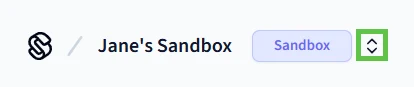 3. Click **New Workspace**.
4. In the **Add a Workspace** dialog, type a name for your new workspace and your company name.
5. Disable **Sandbox mode**.
3. Click **New Workspace**.
4. In the **Add a Workspace** dialog, type a name for your new workspace and your company name.
5. Disable **Sandbox mode**.
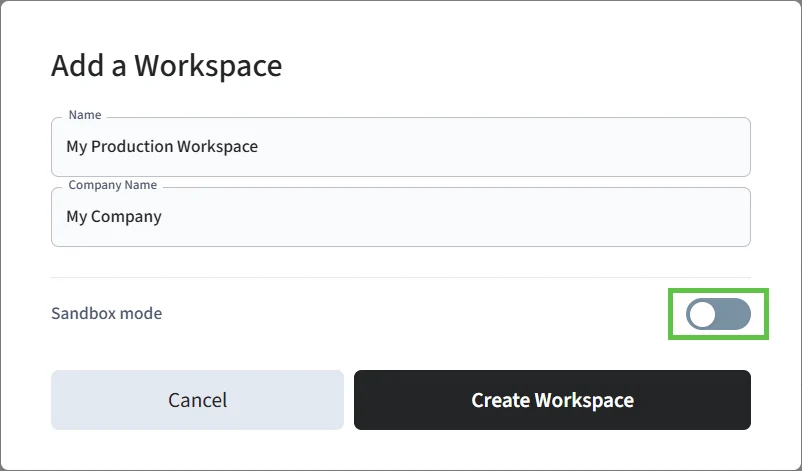 6. Click **Create Workspace**.