> ## Documentation Index
> Fetch the complete documentation index at: https://docs.seam.co/llms.txt
> Use this file to discover all available pages before exploring further.
# ASSA ABLOY Vingcard Credential Services Setup Guide
> Connect your ASSA ABLOY Credential Services to Seam.
## Overview
This guide walks you through connecting ASSA ABLOY Credential Services to Seam. You must already have an ASSA ABLOY Credential Services account before proceeding.
To obtain an account, register for the ASSA ABLOY partnership program by sending an email to either of the following addresses:
* [mobile.access.globalsolutions@assaabloy.com](mailto:mobile.access.globalsolutions@assaabloy.com)
* [onboardingprogram@assaabloy.com](mailto:onboardingprogram@assaabloy.com)
***
## Before You Begin
Before connecting your ASSA ABLOY Credential Services to Seam, you must first identify your ASSA ABLOY credentials.
While you are in the development phase of your application, you can find your [development credentials](#retrieve-your-assa-abloy-development-credentials) in the ASSA ABLOY Global Solutions Technology Partner Portal. You cannot use this preliminary application ID to connect to live sites.
Once you have received certification through the ASSA ABLOY partnership program, ASSA ABLOY provides a set of [production credentials](#retrieve-your-assa-abloy-production-credentials).
### Retrieve Your ASSA ABLOY Development Credentials
Locate your ASSA ABLOY tenant account username and password, as well as your Visionline system ID, application ID, and credential services URL in the ASSA ABLOY Global Solutions Technology Partner Portal.
1. In a web browser, go to the [ASSA ABLOY Global Solutions Technology Partner Portal](https://my.assaabloyglobalsolutions.com/tpp).
2. Log in to the ASSA ABLOY Global Solutions Technology Partner Portal.
3. Click **Accounts > Account List**.
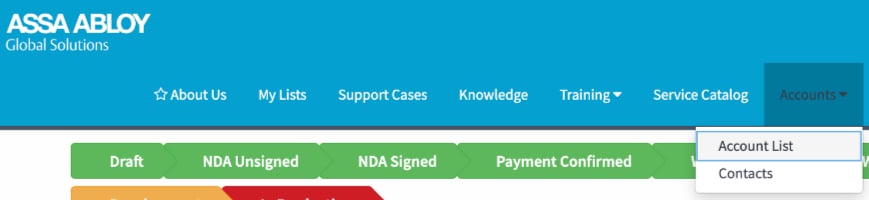 4. In the **Agreements** area, locate and open the text (`.txt`) file. This text file contains your ASSA ABLOY tenant account username and password, as well as your Visionline system ID, application ID, and credential services URL.
### Retrieve Your ASSA ABLOY Production Credentials
Once you have received certification, ASSA ABLOY provides your production credentials, including your application ID.
***
## Step 1: Connect Through the Connect Webview
1. Create and then display a [Connect Webview](/core-concepts/connect-webviews), including `assa_abloy_credential_service` in the set of [`accepted_providers`](/api/connect_webviews/object).
2. In the Connect Webview, perform the following steps:
1. Click **Continue**.
2. If the Connect Webview displays multiple brand options, select **Assa Abloy Credential Service**.
3. In the **Username** field, type your tenant account username.
4. In the **Password** field, type your tenant account password.
5. In the **Credential Services URL** field, type the credential services URL.
4. In the **Agreements** area, locate and open the text (`.txt`) file. This text file contains your ASSA ABLOY tenant account username and password, as well as your Visionline system ID, application ID, and credential services URL.
### Retrieve Your ASSA ABLOY Production Credentials
Once you have received certification, ASSA ABLOY provides your production credentials, including your application ID.
***
## Step 1: Connect Through the Connect Webview
1. Create and then display a [Connect Webview](/core-concepts/connect-webviews), including `assa_abloy_credential_service` in the set of [`accepted_providers`](/api/connect_webviews/object).
2. In the Connect Webview, perform the following steps:
1. Click **Continue**.
2. If the Connect Webview displays multiple brand options, select **Assa Abloy Credential Service**.
3. In the **Username** field, type your tenant account username.
4. In the **Password** field, type your tenant account password.
5. In the **Credential Services URL** field, type the credential services URL.
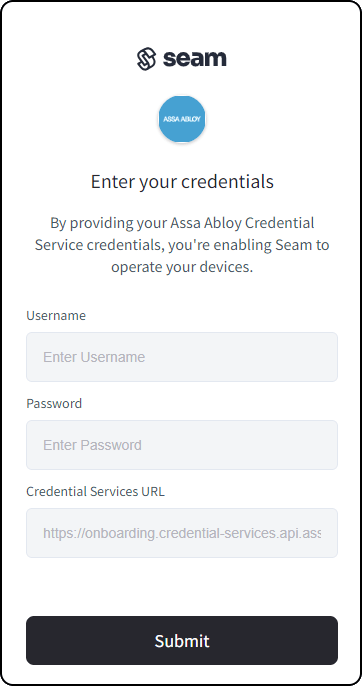 6. Click **Submit**.
***
## Step 2: Configure Your Application ID (Custom Mobile App Only)
If you are developing a custom mobile app, configure your ASSA ABLOY settings:
1. In the top navigation pane of [Seam Console](https://console.seam.co/), click **Settings**.
2. On the **Workspace Settings** page, next to **Assa Abloy Settings**, click **Edit**.
3. In the **Assa Abloy Settings** dialog, type your application ID.
ASSA ABLOY assigns this application ID to your app when you receive certification. This single application ID uniquely identifies your application within both the iOS and Android app stores.
6. Click **Submit**.
***
## Step 2: Configure Your Application ID (Custom Mobile App Only)
If you are developing a custom mobile app, configure your ASSA ABLOY settings:
1. In the top navigation pane of [Seam Console](https://console.seam.co/), click **Settings**.
2. On the **Workspace Settings** page, next to **Assa Abloy Settings**, click **Edit**.
3. In the **Assa Abloy Settings** dialog, type your application ID.
ASSA ABLOY assigns this application ID to your app when you receive certification. This single application ID uniquely identifies your application within both the iOS and Android app stores.
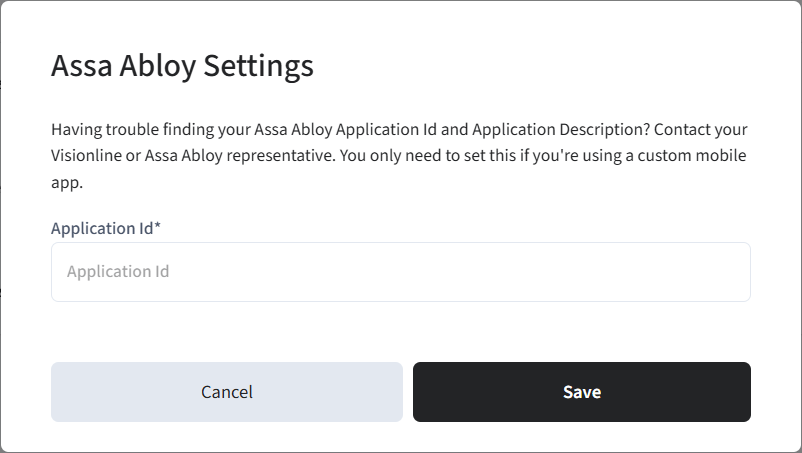 4. Click **Save**.
ASSA ABLOY assigns you a preliminary application ID during the development
phase. You cannot use this preliminary application ID to connect to live
sites. After you receive certification, ASSA ABLOY provides a production
application ID that you can use to connect to real sites. Consequently, when
you obtain certification, you must edit your workspace settings to update this
application ID.
***
## Step 3: Verify the Connection
After connecting, verify that your ASSA ABLOY Credential Services account appears in your Seam workspace and shows a **connected** status.
***
## Troubleshooting
### Connection fails during login
* Verify that you are using the correct tenant account username and password from the ASSA ABLOY Global Solutions Technology Partner Portal.
* Confirm that the credential services URL is entered correctly.
### Cannot connect to live sites
* Ensure you are using production credentials, not development credentials. The preliminary application ID cannot connect to live sites.
* If you have recently received certification, update your application ID in the workspace settings.
4. Click **Save**.
ASSA ABLOY assigns you a preliminary application ID during the development
phase. You cannot use this preliminary application ID to connect to live
sites. After you receive certification, ASSA ABLOY provides a production
application ID that you can use to connect to real sites. Consequently, when
you obtain certification, you must edit your workspace settings to update this
application ID.
***
## Step 3: Verify the Connection
After connecting, verify that your ASSA ABLOY Credential Services account appears in your Seam workspace and shows a **connected** status.
***
## Troubleshooting
### Connection fails during login
* Verify that you are using the correct tenant account username and password from the ASSA ABLOY Global Solutions Technology Partner Portal.
* Confirm that the credential services URL is entered correctly.
### Cannot connect to live sites
* Ensure you are using production credentials, not development credentials. The preliminary application ID cannot connect to live sites.
* If you have recently received certification, update your application ID in the workspace settings.