> ## Documentation Index
> Fetch the complete documentation index at: https://docs.seam.co/llms.txt
> Use this file to discover all available pages before exploring further.
# API Keys
> Create an API key for authorization that enables you to control devices connected to a specific Seam workspace.
You [create an API key](#create-an-api-key) in your [sandbox workspace](/core-concepts/workspaces/index#sandbox-workspaces) or [production workspace](/core-concepts/workspaces/index#production-workspaces) to authorize your use of the Seam API. When using the Seam HTTP API or any of the Seam SDKs, you must provide this API key to issue commands that enable you to control the devices in the associated workspace. It is useful to [export your API key](#export-an-api-key) as an environment variable. You can also [test your API key](#test-an-api-key).
Never use an API key in a web browser or expose it to your users.
## Create an API Key
Each API key is associated with a specific workspace. For example, if you have a sandbox workspace and a production workspace, you must create and use a different API key for each of these two workspaces.
If you need to access multiple workspaces, create a [Personal Access
Token](/core-concepts/authentication/personal-access-tokens) to use instead of a workspace-specific API
key.
1. In the upper-left corner of [Seam Console](https://console.seam.co/), click the workspace switcher.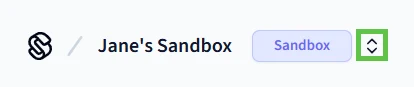 2. Click **New Workspace**.
3. Click the workspace for which you want to create an API key.
4. In the left navigation pane, click **API Keys**.
5. In the upper-right corner of the **API Keys** page, click **Add API Key**.
6. In the **Add API Key** dialog, type a name for your new API key and then click **Create API Key**.
7. Copy the newly-created API key and store it for future use.
Production API keys do not include `test`, while API keys for sandbox
workspaces do include `test`. In addition, if you accidentally commit your API
key to a GitHub repo, the `seam_` prefix is detected, and you are notified.
## Export an API Key
Once you have created an API key, it is useful to export this key as an environment variable. Then, all installed Seam SDKs automatically use this exported API key.
Open a terminal window and enter the following command to export your API key:
```sh theme={null}
$ export SEAM_API_KEY=seam_test2bMS_94SrGUXuNR2JmJkjtvBQDg5c
```
## Test an API Key
Test an API key by [exporting the key](#export-an-api-key) as an environment variable and then running the code in this section. If the API key is valid, the response displays the corresponding workspace information.
First, export the API key, as follows:
```sh theme={null}
$ export SEAM_API_KEY=seam_test2bMS_94SrGUXuNR2JmJkjtvBQDg5c
```
Then, run the following code to test the API key:
**Code:**
```javascript JavaScript theme={null}
import { Seam } from 'seam'
const seam = new Seam() // Seam automatically uses your exported SEAM_API_KEY.
const checkAuth = async () => {
const workspace = await seam.workspaces.get()
console.log(workspace)
}
checkAuth()
```
```bash cURL theme={null}
curl -X 'POST' \
'https://connect.getseam.com/workspaces/get' \
-H 'accept: application/json' \
-H "Authorization: Bearer ${SEAM_API_KEY}" \
-H 'Content-Type: application/json' \
-d '{}'
```
```python Python theme={null}
from seam import Seam
seam = Seam() # Seam automatically uses your exported SEAM_API_KEY.
workspace = seam.workspaces.get()
pprint(workspace)
```
```ruby Ruby theme={null}
require "seam"
seam = Seam.new() # Seam automatically uses your exported SEAM_API_KEY.
workspace = seam.workspaces.get()
puts workspace.inspect
```
```php PHP theme={null}
workspaces->get();
echo json_encode($workspace, JSON_PRETTY_PRINT);
```
```csharp C# theme={null}
using Seam.Client;
var seam = new SeamClient(apiToken: SEAM_API_KEY);
var workspace = seam.Workspaces.Get();
Console.WriteLine(workspace);
```
**Output:**
```json JavaScript theme={null}
{
workspace_id: '00000000-0000-0000-0000-000000000000',
name: 'Sandbox',
company_name: 'Acme',
connect_partner_name: 'Acme',
is_sandbox": true
}
```
```json cURL theme={null}
{
"workspace": {
"workspace_id": "00000000-0000-0000-0000-000000000000",
"name": "Sandbox",
"company_name": "Acme",
"connect_partner_name": "Acme",
"is_sandbox": true
},
"ok": true
}
```
```json Python theme={null}
Workspace(
workspace_id='00000000-0000-0000-0000-000000000000',
name='Sandbox',
company_name='Acme',
connect_partner_name='Acme',
is_sandbox=True
)
```
```json Ruby theme={null}
<
Seam::Workspace:0x0070328
workspace_id="00000000-0000-0000-0000-000000000000"
name="Sandbox"
company_name="Acme"
connect_partner_name="Acme"
is_sandbox=true
>
```
```json PHP theme={null}
{
"workspace_id": "00000000-0000-0000-0000-000000000000",
"name": "Sandbox",
"company_name": "Acme",
"connect_partner_name": "Acme",
"is_sandbox": true
}
```
```json C# theme={null}
{
"workspace_id": "00000000-0000-0000-0000-000000000000",
"name": "Sandbox",
"company_name": "Acme",
"connect_partner_name": "Acme",
"is_sandbox": true
}
```
2. Click **New Workspace**.
3. Click the workspace for which you want to create an API key.
4. In the left navigation pane, click **API Keys**.
5. In the upper-right corner of the **API Keys** page, click **Add API Key**.
6. In the **Add API Key** dialog, type a name for your new API key and then click **Create API Key**.
7. Copy the newly-created API key and store it for future use.
Production API keys do not include `test`, while API keys for sandbox
workspaces do include `test`. In addition, if you accidentally commit your API
key to a GitHub repo, the `seam_` prefix is detected, and you are notified.
## Export an API Key
Once you have created an API key, it is useful to export this key as an environment variable. Then, all installed Seam SDKs automatically use this exported API key.
Open a terminal window and enter the following command to export your API key:
```sh theme={null}
$ export SEAM_API_KEY=seam_test2bMS_94SrGUXuNR2JmJkjtvBQDg5c
```
## Test an API Key
Test an API key by [exporting the key](#export-an-api-key) as an environment variable and then running the code in this section. If the API key is valid, the response displays the corresponding workspace information.
First, export the API key, as follows:
```sh theme={null}
$ export SEAM_API_KEY=seam_test2bMS_94SrGUXuNR2JmJkjtvBQDg5c
```
Then, run the following code to test the API key:
**Code:**
```javascript JavaScript theme={null}
import { Seam } from 'seam'
const seam = new Seam() // Seam automatically uses your exported SEAM_API_KEY.
const checkAuth = async () => {
const workspace = await seam.workspaces.get()
console.log(workspace)
}
checkAuth()
```
```bash cURL theme={null}
curl -X 'POST' \
'https://connect.getseam.com/workspaces/get' \
-H 'accept: application/json' \
-H "Authorization: Bearer ${SEAM_API_KEY}" \
-H 'Content-Type: application/json' \
-d '{}'
```
```python Python theme={null}
from seam import Seam
seam = Seam() # Seam automatically uses your exported SEAM_API_KEY.
workspace = seam.workspaces.get()
pprint(workspace)
```
```ruby Ruby theme={null}
require "seam"
seam = Seam.new() # Seam automatically uses your exported SEAM_API_KEY.
workspace = seam.workspaces.get()
puts workspace.inspect
```
```php PHP theme={null}
workspaces->get();
echo json_encode($workspace, JSON_PRETTY_PRINT);
```
```csharp C# theme={null}
using Seam.Client;
var seam = new SeamClient(apiToken: SEAM_API_KEY);
var workspace = seam.Workspaces.Get();
Console.WriteLine(workspace);
```
**Output:**
```json JavaScript theme={null}
{
workspace_id: '00000000-0000-0000-0000-000000000000',
name: 'Sandbox',
company_name: 'Acme',
connect_partner_name: 'Acme',
is_sandbox": true
}
```
```json cURL theme={null}
{
"workspace": {
"workspace_id": "00000000-0000-0000-0000-000000000000",
"name": "Sandbox",
"company_name": "Acme",
"connect_partner_name": "Acme",
"is_sandbox": true
},
"ok": true
}
```
```json Python theme={null}
Workspace(
workspace_id='00000000-0000-0000-0000-000000000000',
name='Sandbox',
company_name='Acme',
connect_partner_name='Acme',
is_sandbox=True
)
```
```json Ruby theme={null}
<
Seam::Workspace:0x0070328
workspace_id="00000000-0000-0000-0000-000000000000"
name="Sandbox"
company_name="Acme"
connect_partner_name="Acme"
is_sandbox=true
>
```
```json PHP theme={null}
{
"workspace_id": "00000000-0000-0000-0000-000000000000",
"name": "Sandbox",
"company_name": "Acme",
"connect_partner_name": "Acme",
"is_sandbox": true
}
```
```json C# theme={null}
{
"workspace_id": "00000000-0000-0000-0000-000000000000",
"name": "Sandbox",
"company_name": "Acme",
"connect_partner_name": "Acme",
"is_sandbox": true
}
```