> ## Documentation Index
> Fetch the complete documentation index at: https://docs.seam.co/llms.txt
> Use this file to discover all available pages before exploring further.
# Seam Bridge Setup for Linux
> Step-by-step instructions for installing, launching, and configuring Seam Bridge on Linux.
## System Requirements
### Supported distributions
Ubuntu, Debian, Fedora, Arch, OpenSUSE, and most Linux desktops that include WebKitGTK.
### Runtime dependencies
WebKitGTK 3 or 4
1. Check if installed:
```bash theme={null}
ldd ./seambridge | grep webkit
```
2. If not installed, the user must install (depending on distro):
* **Ubuntu/Debian**
```bash theme={null}
sudo apt install libwebkit2gtk-4.0-37
```
* **Fedora**
```bash theme={null}
sudo dnf install webkit2gtk3
```
* **Arch**
```bash theme={null}
sudo pacman -S webkit2gtk
```
### Minimum hardware
* 1 GB RAM
* \~150 MB disk space
* x64 architecture
* LAN Network access
***
## Run Seam Bridge
### Launch the app and allow required permissions
1. Open the downloaded Seam Bridge file.
2. If it does not open, you may need to mark it as executable.
```bash theme={null}
chmod +x ./seambridge
```
3. Launch the app:
```
./seambridge
```
4. If the app does not start due to permissions, you may need to allow it through your system’s security settings:
* Some Linux distributions block files downloaded from the internet.
* If this happens, remove the quarantine attribute (if present):
```bash theme={null}
xattr -d com.apple.quarantine ./seambridge
```
*(On most Linux systems this won’t appear, but it’s safe to run.)*
5. If your Linux system prompts you to allow the app to access the network, approve the request so Seam Bridge can connect to your on-premises system.
6. Seam Bridge will launch.
***
### Complete Seam Bridge setup
1. Accept the **Terms of Service.**
2. Enter a name for the site that you are connecting using Seam Bridge—for example, `My Site`—and then click **Start pairing**.
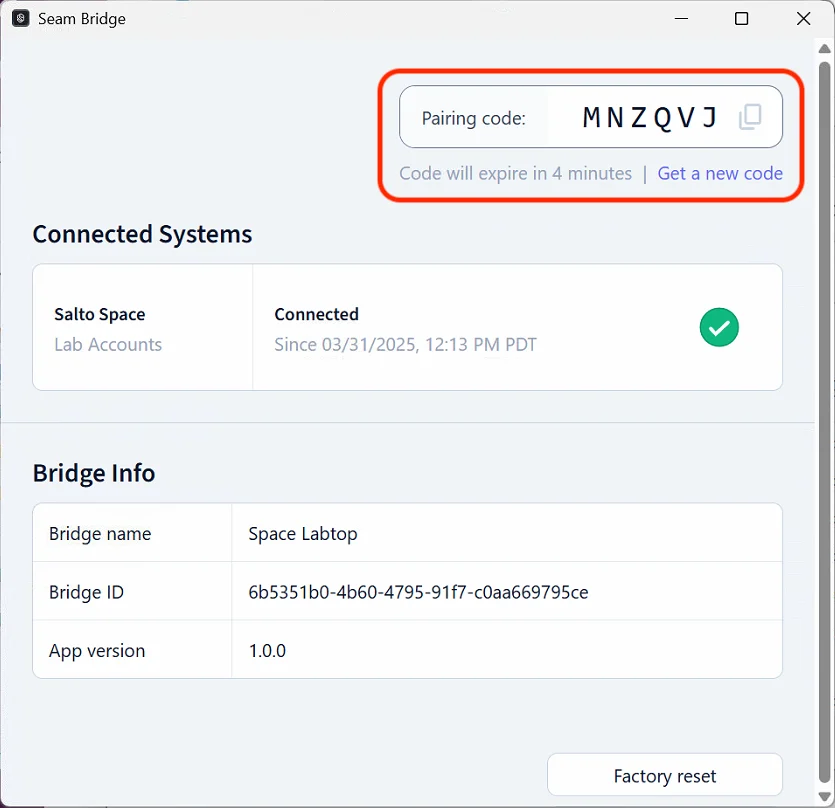
 3. Seam Bridge displays a **Pairing code.** Use this code when connecting Seam Bridge to your workspace. Return to this window whenever a new pairing code is requested.
 ***
### Set up Seam Bridge to reboot on restart
Use `systemd` to keep an app running on Linux. It supervises the process, restarts it on crash, and handles boot startup.
#### Create a systemd service file
1. Open Terminal.
2. Create the service file:\\
```bash theme={null}
sudo nano /etc/systemd/system/SeamBridge.service
```
3. Add this template:
```
[Unit]
Description=Seam Bridge - Keep Running
After=network.target
[Service]
ExecStart=/usr/local/bin/SeamBridge.exe
Restart=always
RestartSec=3
WorkingDirectory=/usr/local/bin
User=ubuntu
Environment=NODE_ENV=production
[Install]
WantedBy=multi-user.target
```
4. Replace paths and `User` as needed.
#### Enable and start the service
1. Within Terminal, run the following commands:
```
sudo systemctl daemon-reload
sudo systemctl enable SeamBridge.service
sudo systemctl start SeamBridge.service
```
#### Verify status
1. Run the following command in Terminal to confirm that the service is running:
```
systemctl status SeamBridge.service
```
You should see the service running and supervised.
#### Test auto-restart
1. Kill the process manually with `pkill SeamBridge`.
2. `systemd` should restart it immediately.
***
### Set up Seam Bridge to reboot on restart
Use `systemd` to keep an app running on Linux. It supervises the process, restarts it on crash, and handles boot startup.
#### Create a systemd service file
1. Open Terminal.
2. Create the service file:\\
```bash theme={null}
sudo nano /etc/systemd/system/SeamBridge.service
```
3. Add this template:
```
[Unit]
Description=Seam Bridge - Keep Running
After=network.target
[Service]
ExecStart=/usr/local/bin/SeamBridge.exe
Restart=always
RestartSec=3
WorkingDirectory=/usr/local/bin
User=ubuntu
Environment=NODE_ENV=production
[Install]
WantedBy=multi-user.target
```
4. Replace paths and `User` as needed.
#### Enable and start the service
1. Within Terminal, run the following commands:
```
sudo systemctl daemon-reload
sudo systemctl enable SeamBridge.service
sudo systemctl start SeamBridge.service
```
#### Verify status
1. Run the following command in Terminal to confirm that the service is running:
```
systemctl status SeamBridge.service
```
You should see the service running and supervised.
#### Test auto-restart
1. Kill the process manually with `pkill SeamBridge`.
2. `systemd` should restart it immediately.